Step 1: Access Quick Preview
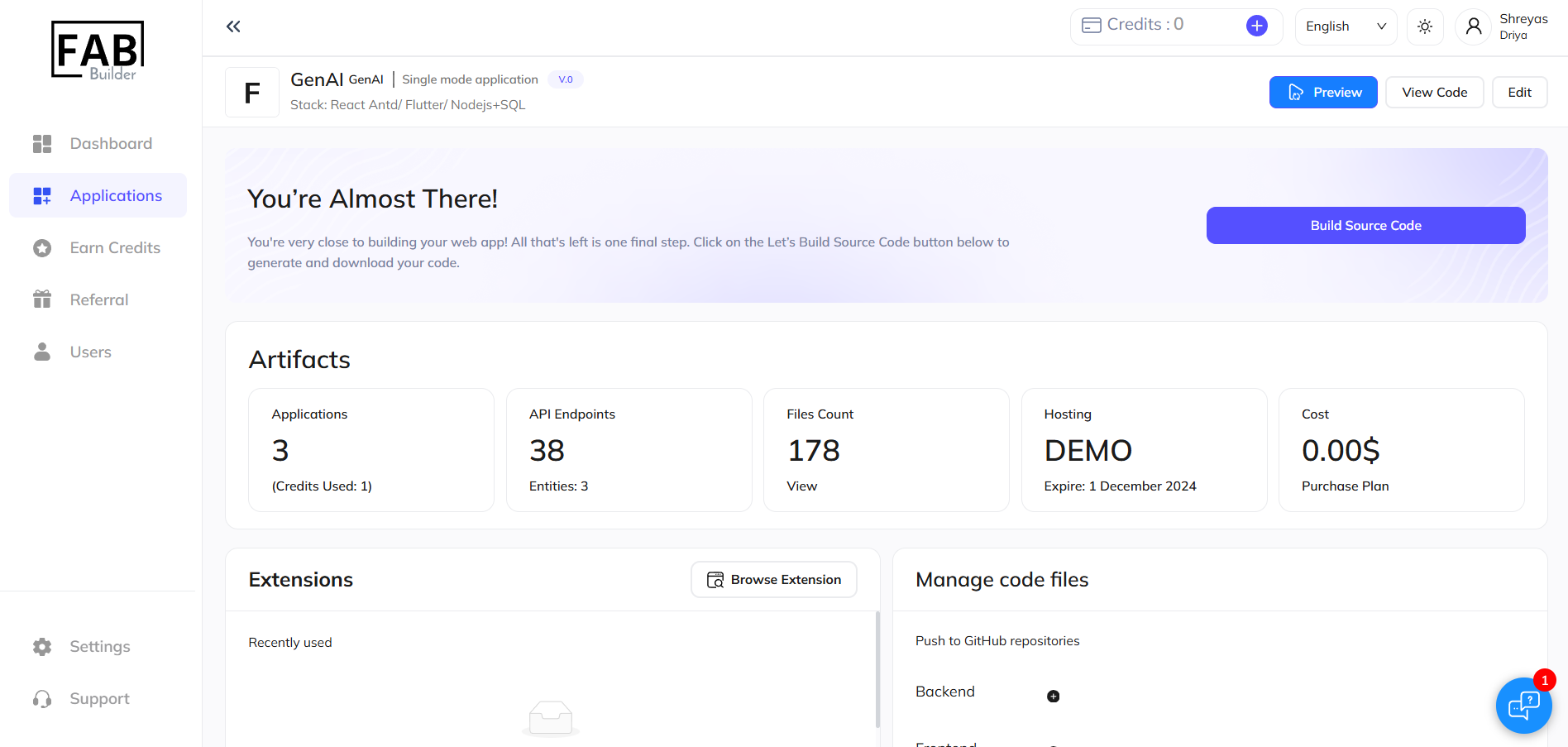
- After building your app successfully, navigate to the "Quick Preview" option available on the application dashboard.
- Click on "Preview" to initiate the review process.
Step 2: View Preview Options
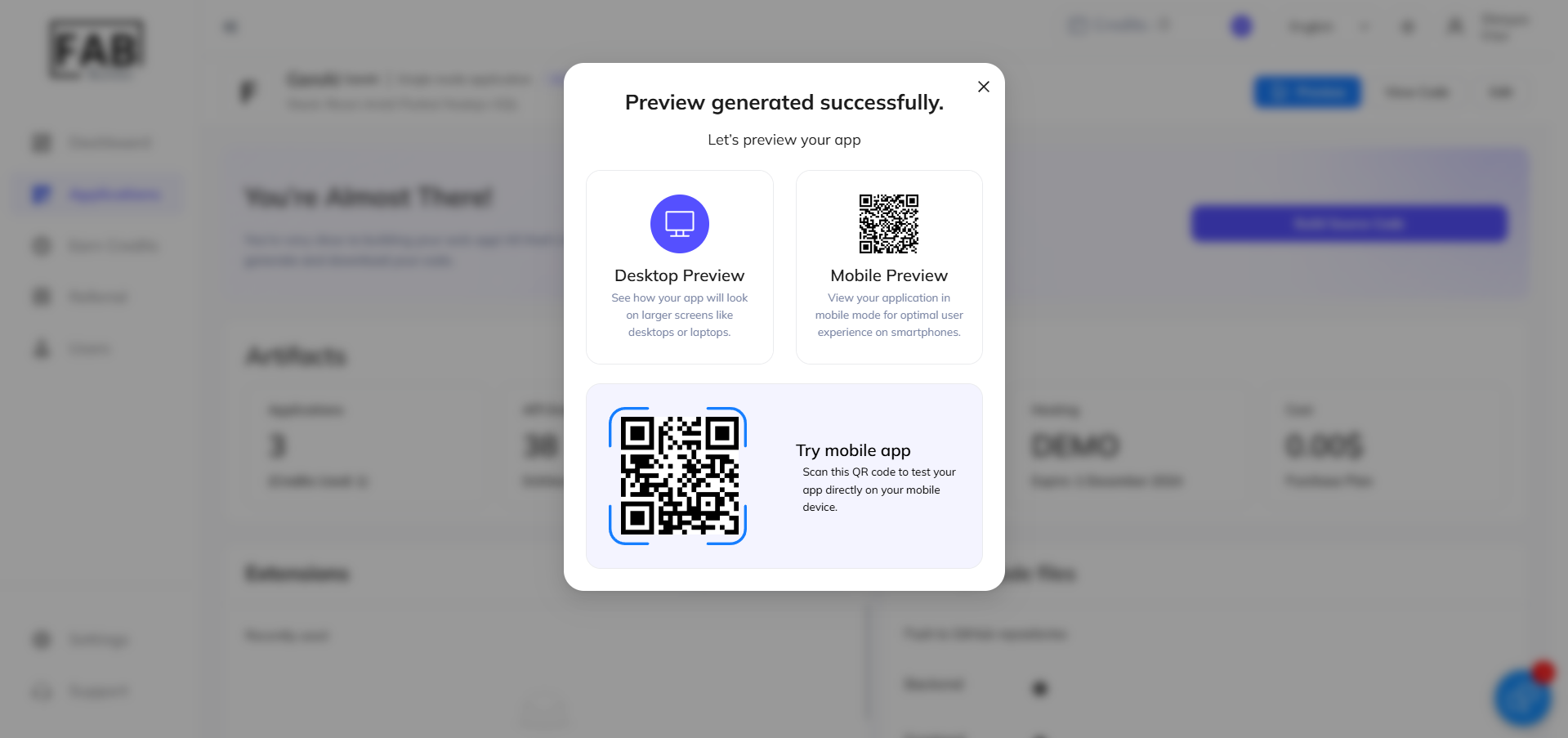
Allow a few seconds for the system to generate your application preview. Once the preview is ready, choose from two convenient viewing options:
- Desktop Preview: Click on "Desktop" to view your application directly on the web.
- Mobile Preview: Scan the provided QR code to experience your app on a mobile device.
Step 3: Interact with the Preview
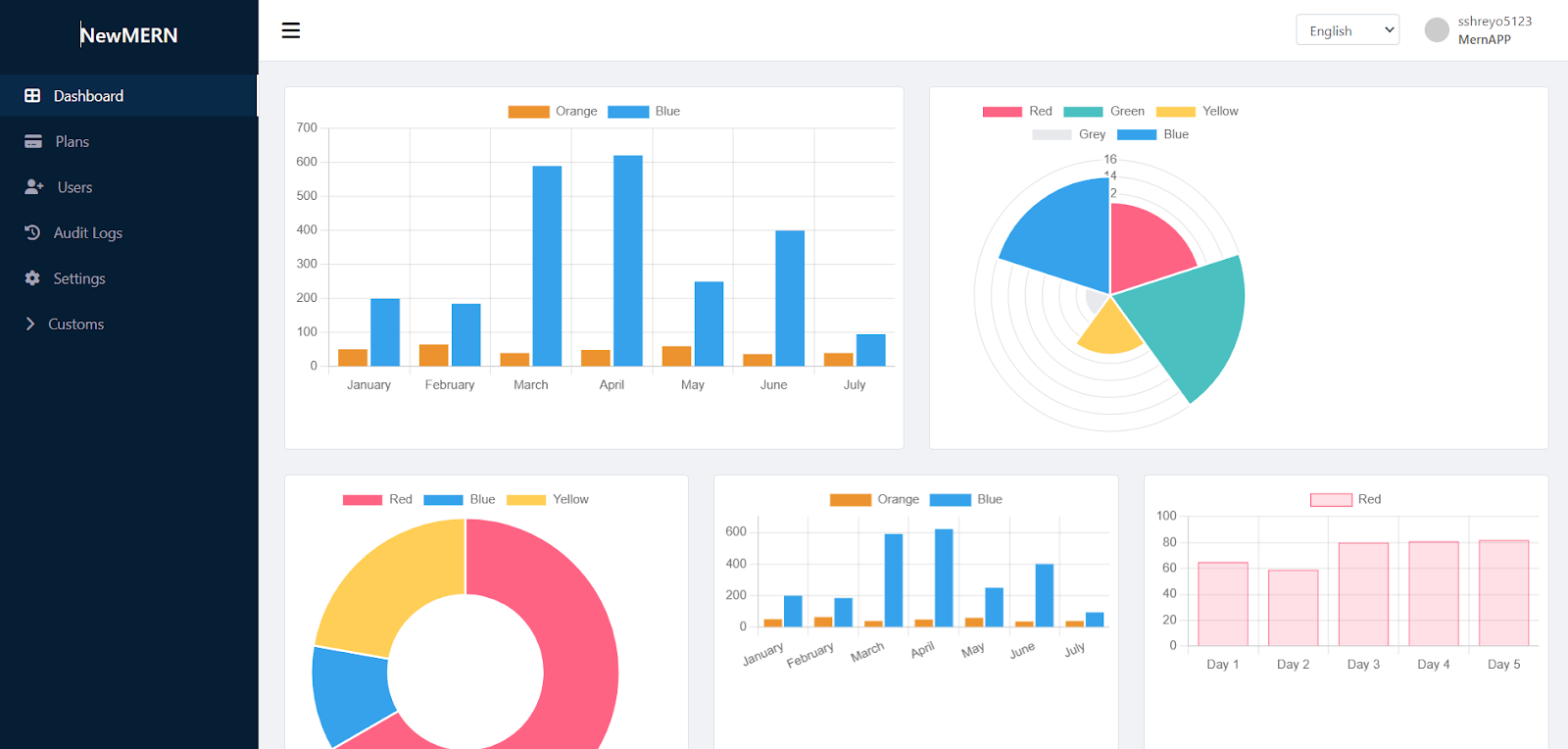
Log in or create an account to fully interact with your application in real time, simulating the end-user experience.
Conclusion
The "Quick Preview" feature in FAB Builder offers a seamless and efficient way to test applications during development. By providing both desktop and mobile preview options, it enables developers to review their app’s design, functionality, and user interface in real time.
This feature not only saves time but also allows for immediate refinements, ensuring the final application meets all expectations. Whether you're fine-tuning app details or testing usability, Quick Preview empowers you to perfect your application effortlessly.
Start leveraging the Quick Preview feature today to enhance your app development journey. Visit FAB Builder Studio and experience the power of efficient app creation and testing.