1. MongoDB: Explore the guide here.
Java: Explore the guide here.
.NET: Explore the guide here.
Node.js: Explore the guide here.
2. Code Generation: Click “Build Source Code” to generate your source code. Please note that code generation may take a few minutes, and entities cannot be edited afterward.
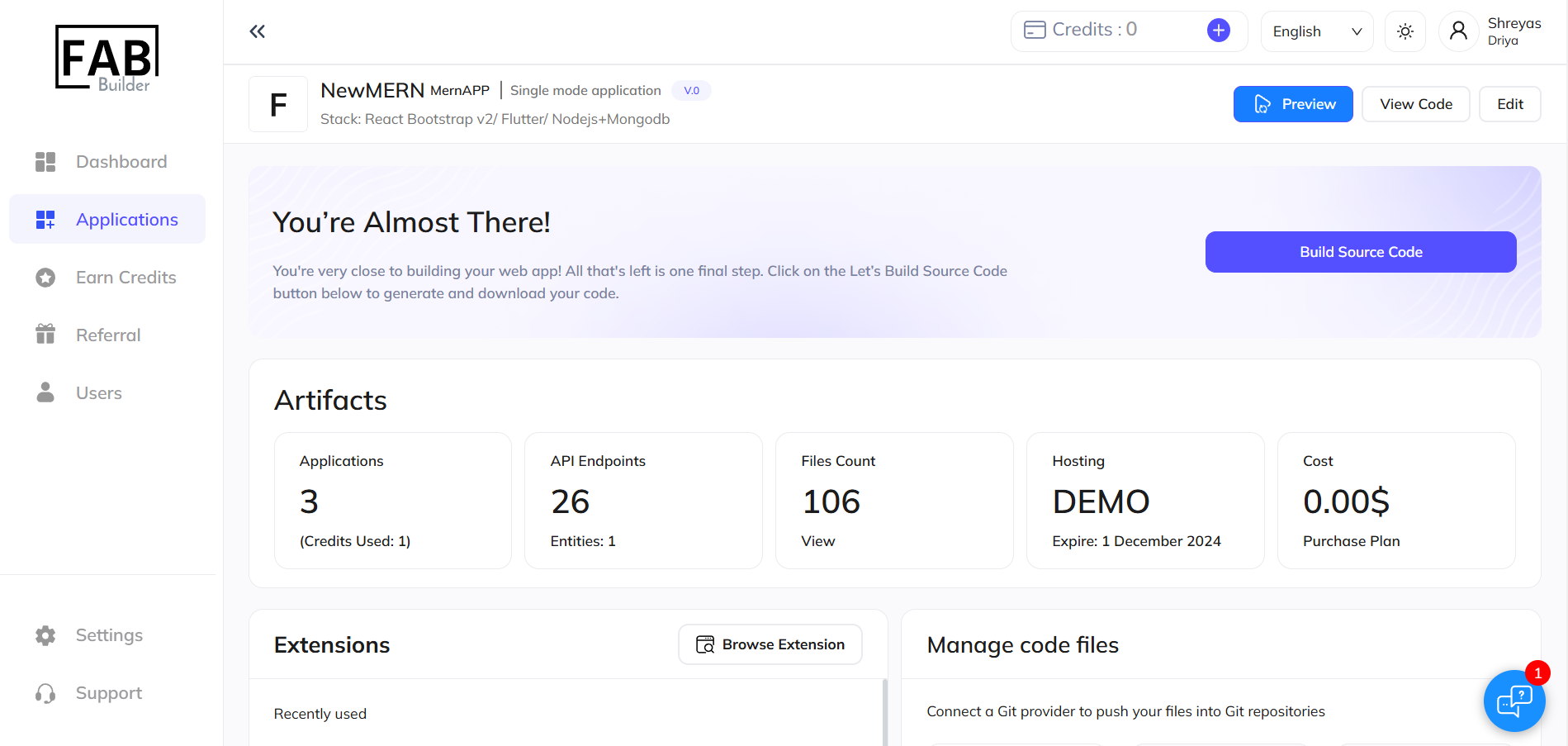
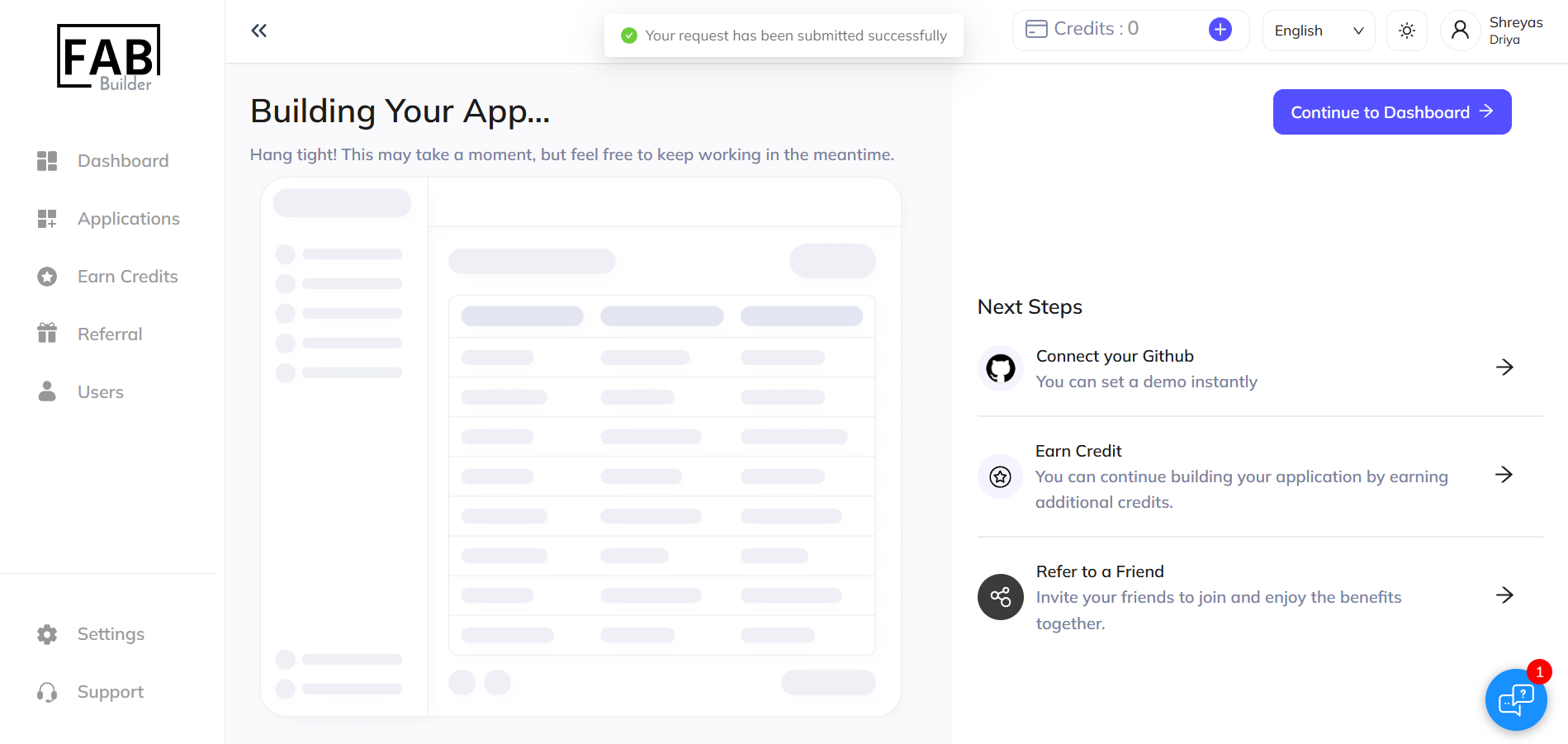
3. Build Progress: The build process will start, and you will be notified once it is complete. During this time, you can:
- Connect to GitHub: Link your GitHub account for version control.
- Earn Credit: Continue development by earning additional credits.
- Refer to a Friend: Invite others and enjoy shared benefits.
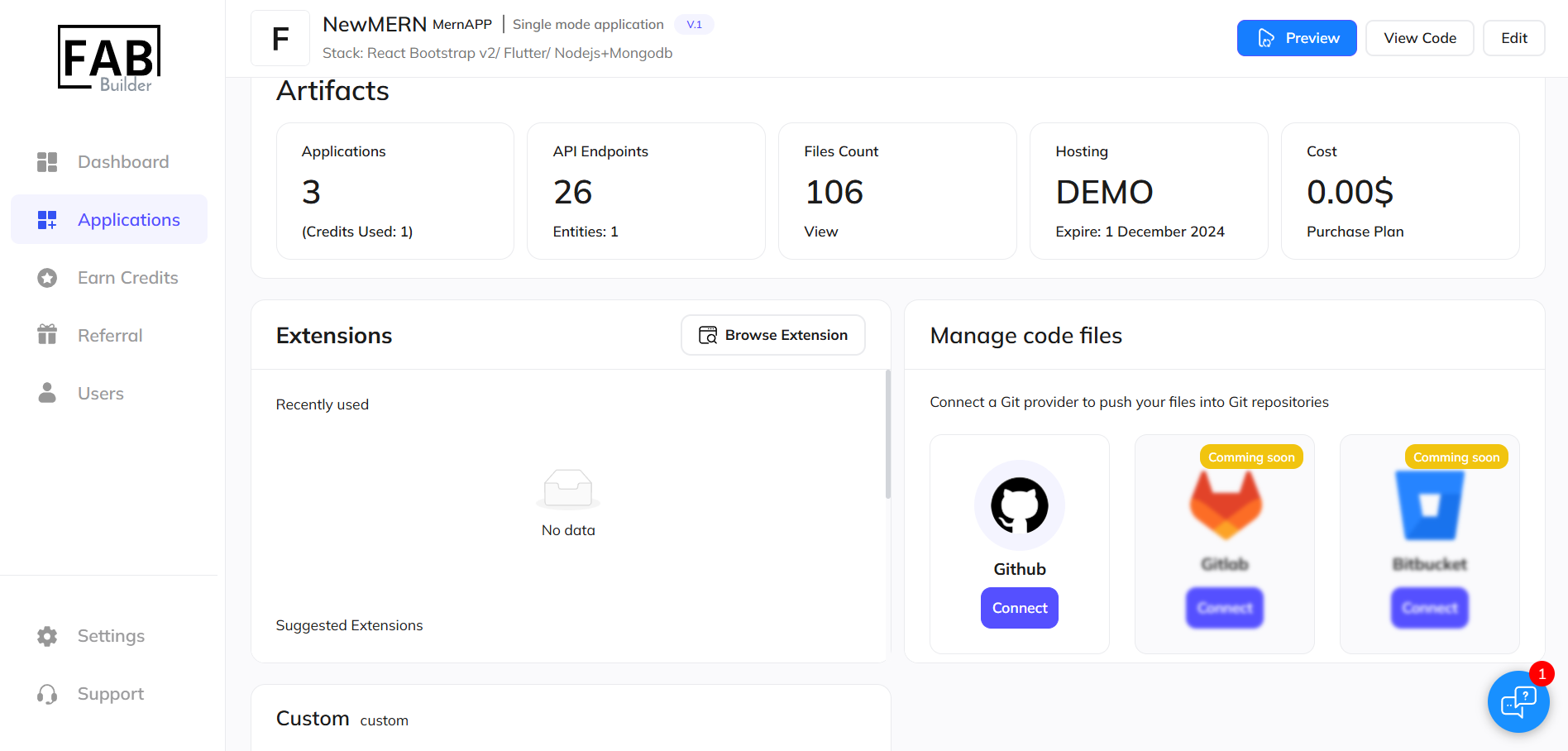
4. Connect to GitHub: While the code generation is in progress, you can connect your application to GitHub via Fab Builder. Click the "Connect" option available on the screen, which will redirect you to the GitHub interface.
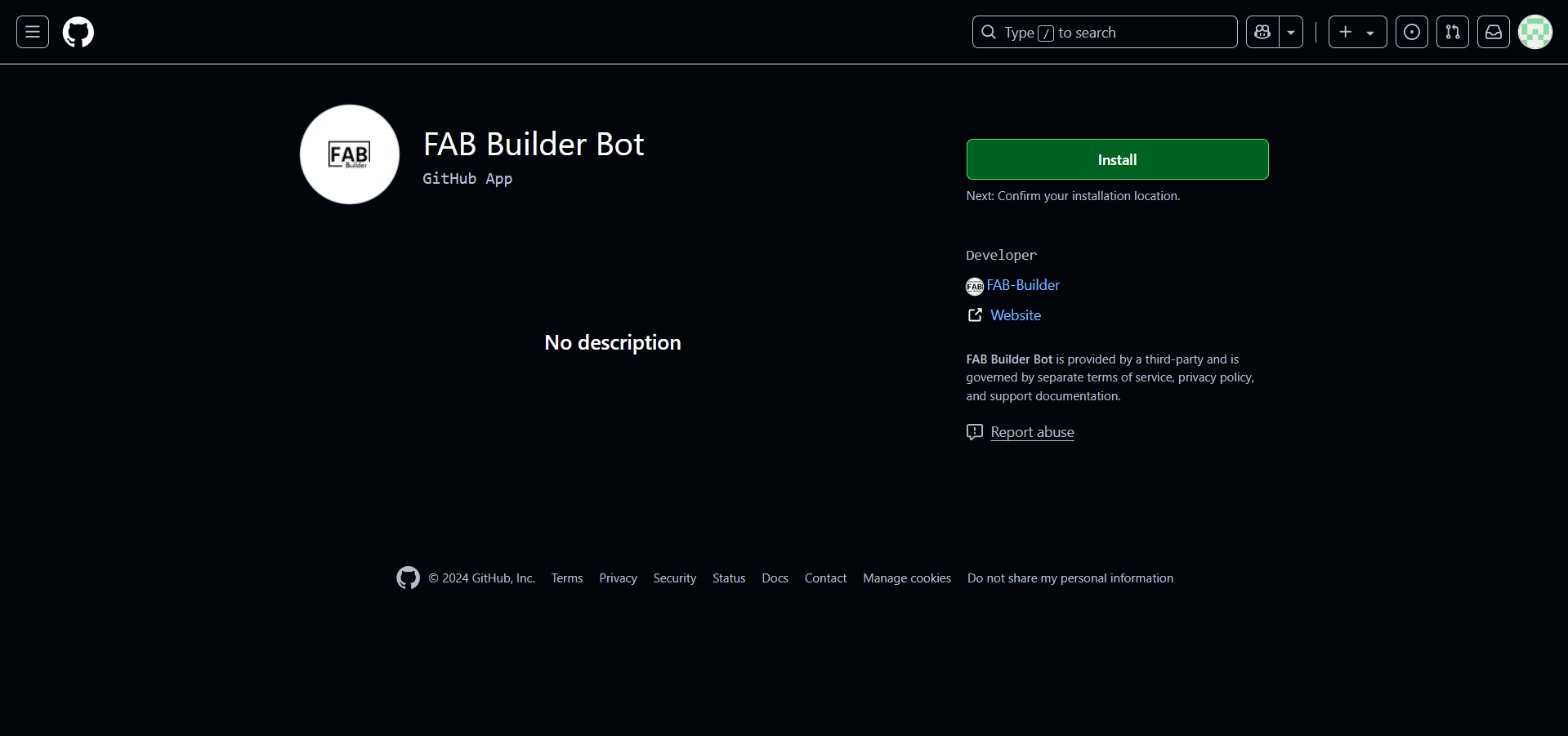
5. Login and Installation: Log in to your GitHub account or create a new account if you don’t already have one. Once logged in, click on "Install" to integrate GitHub with Fab Builder.
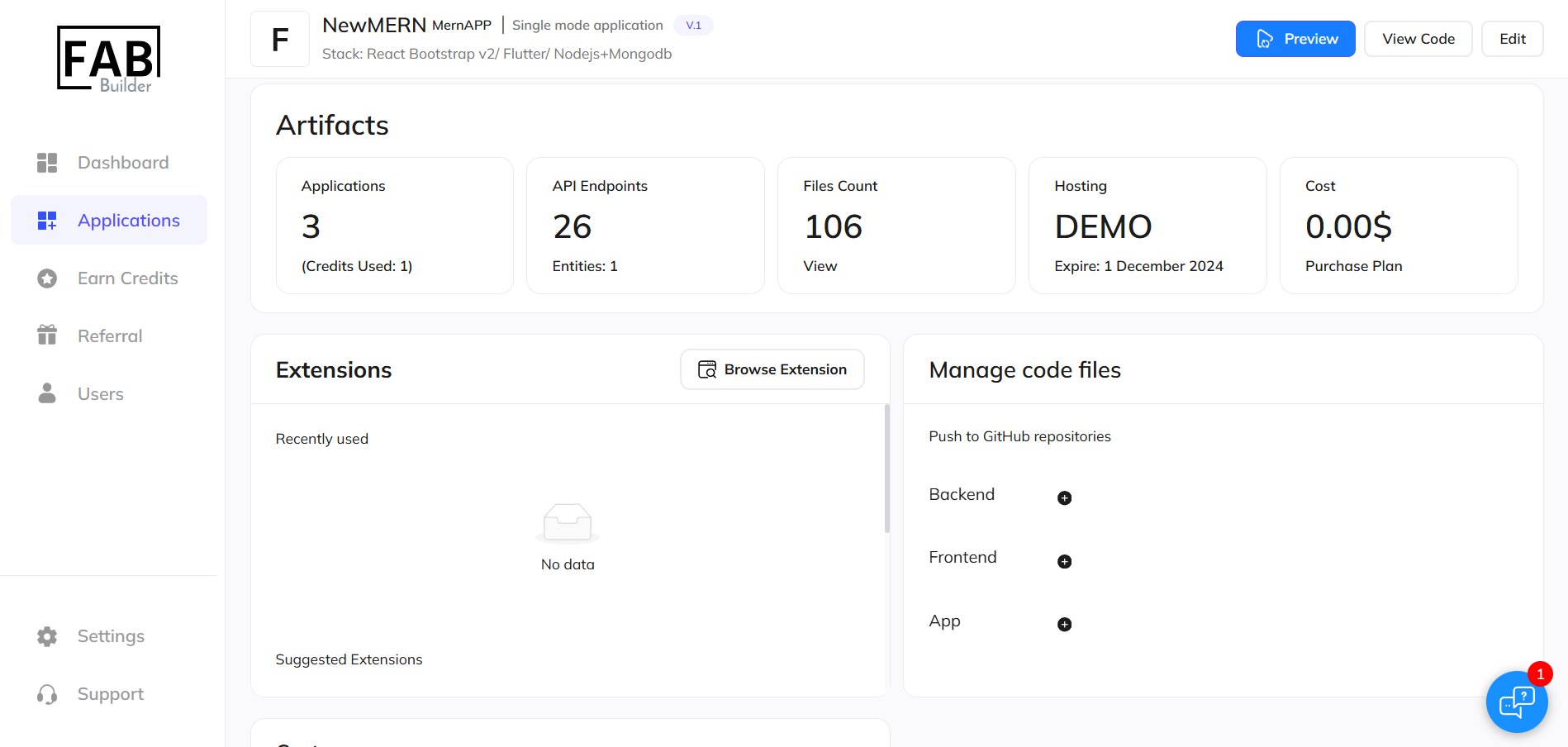
6. Return to Fab Builder: After installation, you will be redirected back to the Fab Builder dashboard. Here, you can access a section for managing code files, where you can review, update, and manage your application's code seamlessly.
Conclusion
Version control and code management with Fab Builder are breezes with the help of connecting Fab Builder with GitHub. This facilitates easy integration, enabling the users to read, update, and manage the code without any issues in the Fab Builder dashboard.