This method is use create new application by selecting the predefined template saved on code generator tool. Use the Template method when building applications that follow a common or pre-defined structure, allowing for quick reuse. To create a new application by template, the user must follow the same step to create new application as AI generator, except for a few initial steps.
Start with Template
To create the application the user should navigate the dashboard and click on Start with Template card method.
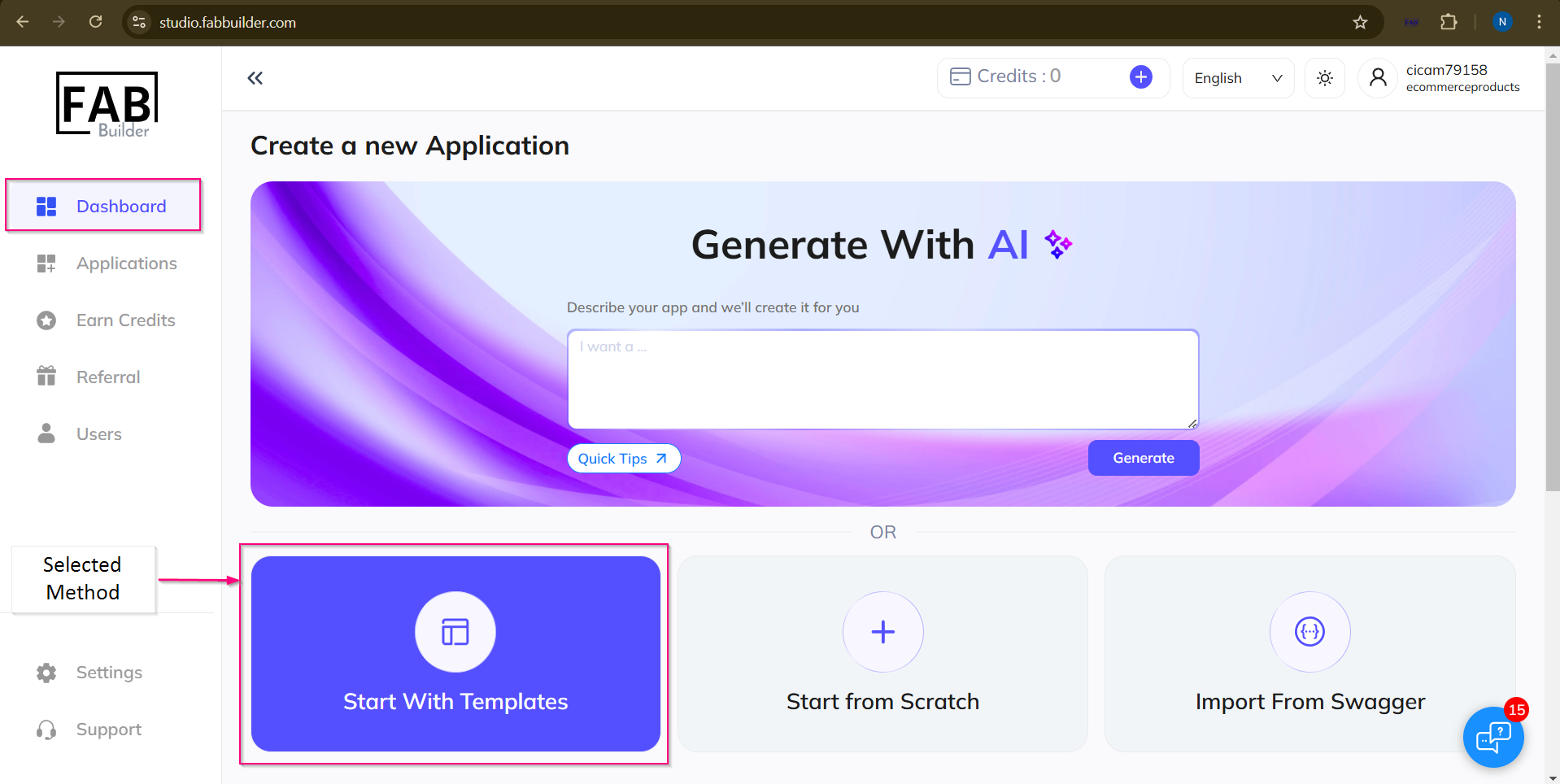
Screen – Template Method Section
Next step will display the template screen. This screen contains predefined template in a form of cards such pet adoption.
1. Select a template
Click on a template card to select it. A green checkmark will appear to indicate it has been selected.
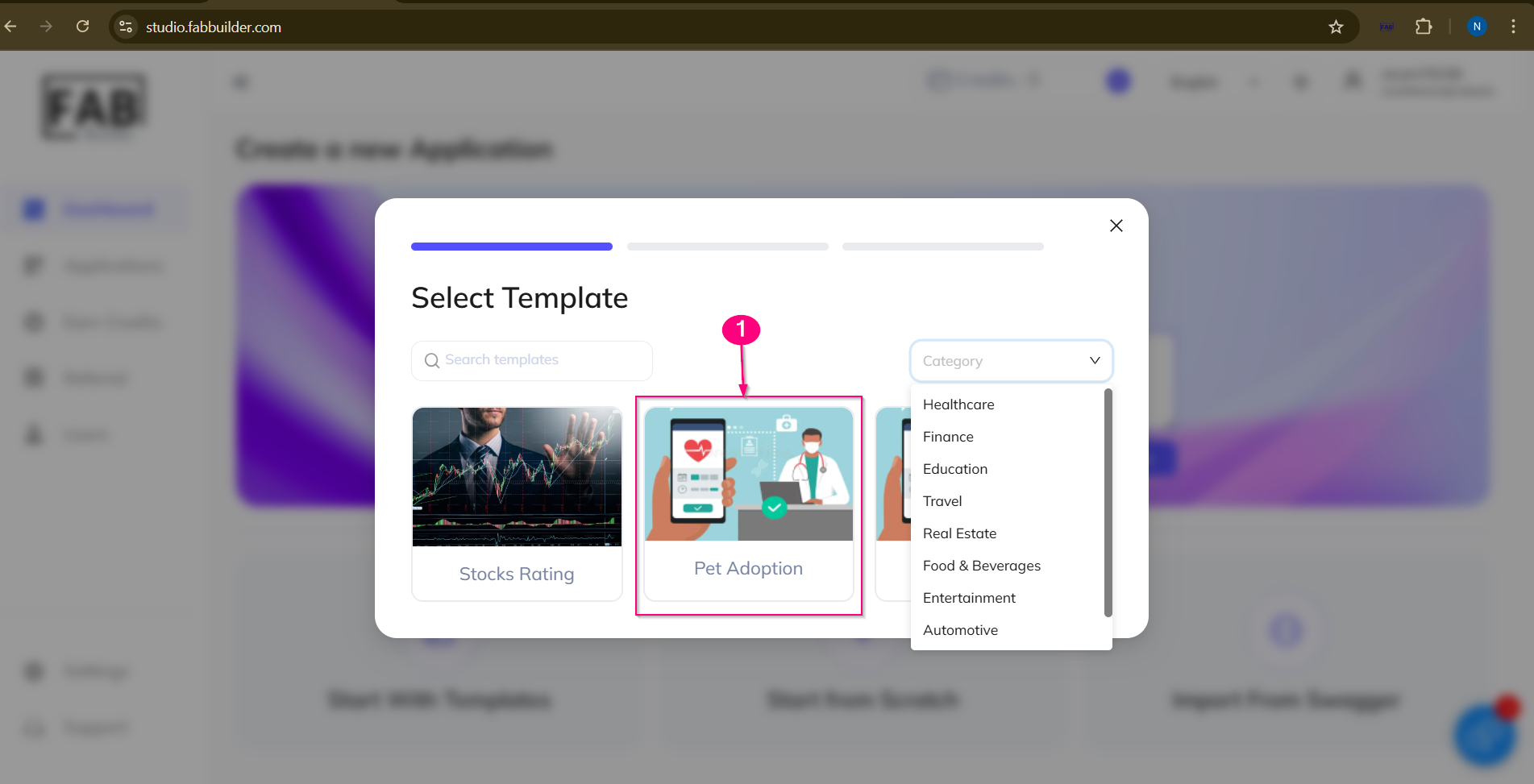
Screen – selected template
This screen also provide users to search Templates quickly by typing keywords in the search box by appling filter based on business domains like e.g., healthcare, finance listed in drop down menu.
2. Enter the template name
After selecting the desired template, proceed to the next screen to setup new application by entering the application name. Click on Next button to proceed for next screen.
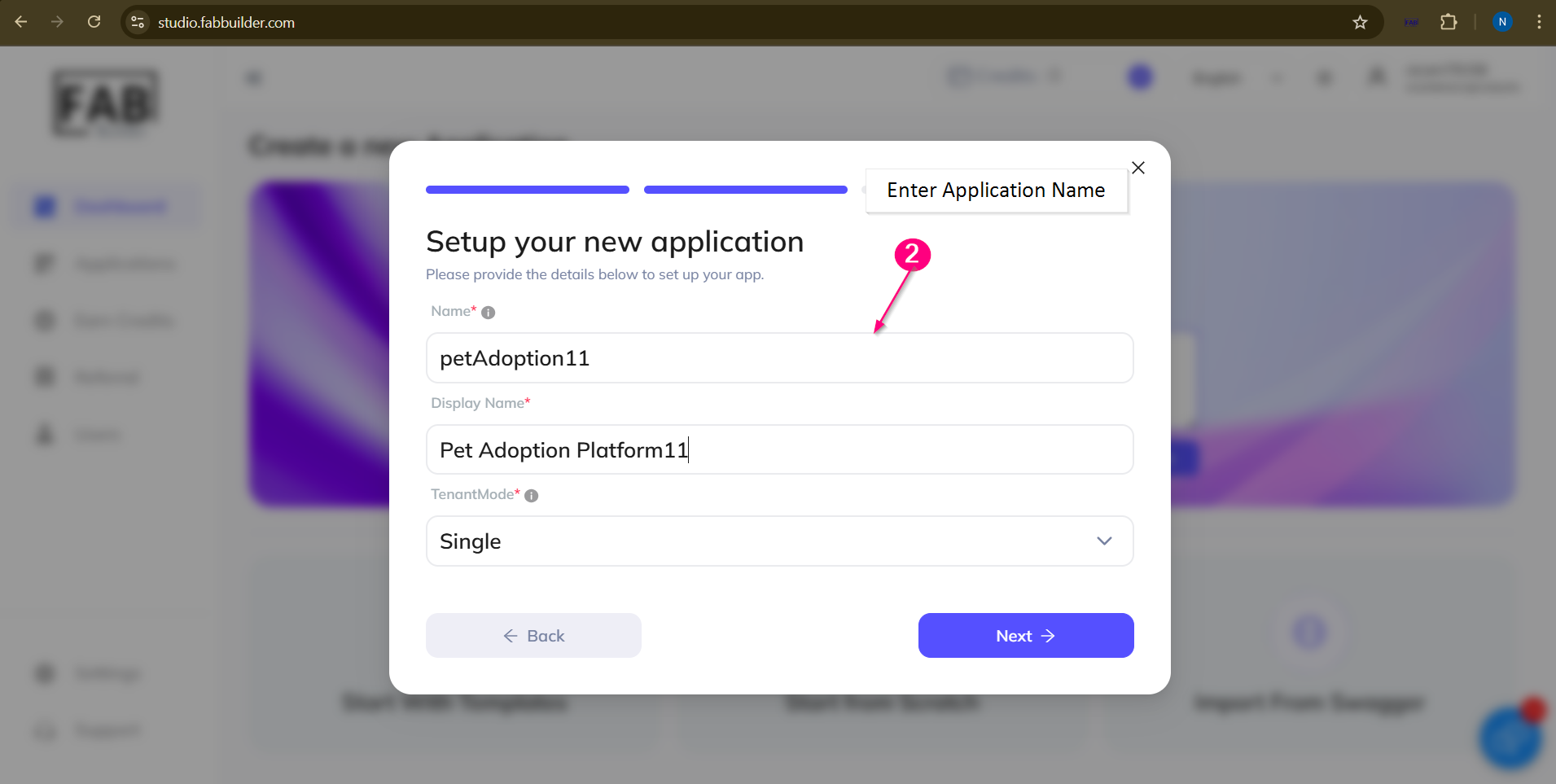
Screen- Name Added to New Application
After entering the application name, the user can review all details and preview(optional)the application. This screen allows users to customize(optional) the tech stack similar to steps described in AI generator method.
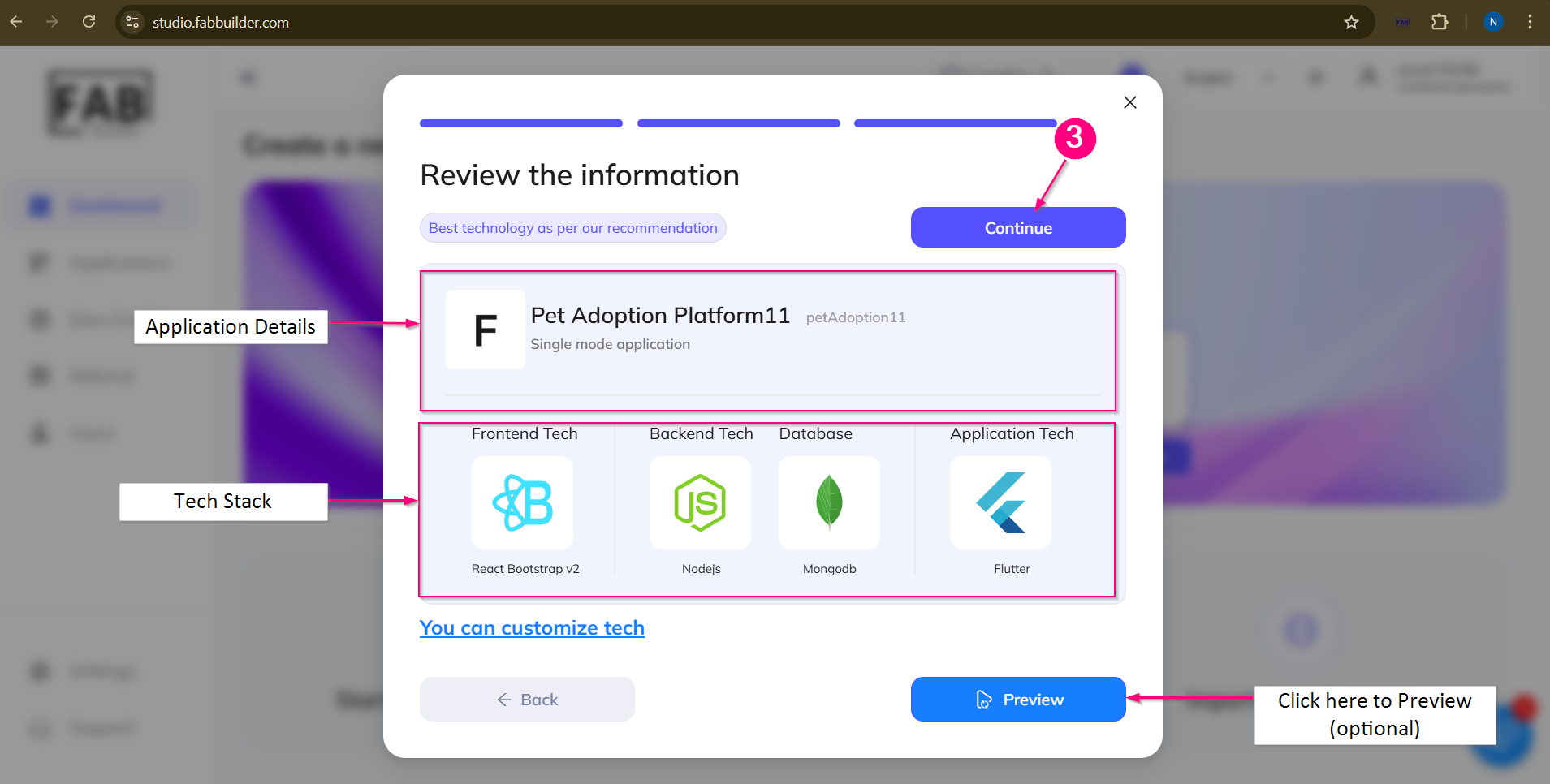
Screen- review of application details.
3. Press Continue button to create final application. Use can refer to the Screen – Congratulation Message on Application Creation and follow the further steps same as AI generator to view and add entities same.