This tab allows the user to update personal details such as name, profile picture, and password. The profile icon button is displayed at the extreme right on the top panel with the username and workspace name (Home). Upon clicking on the profile button, the drop-down will appear with several options.
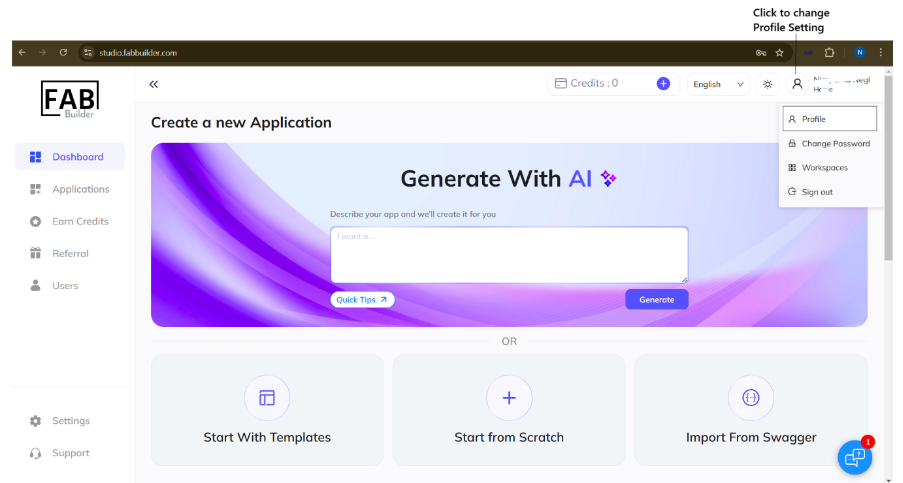
To update the personal information, select Profile from the dropdown menu. This action opens the Profile screen.
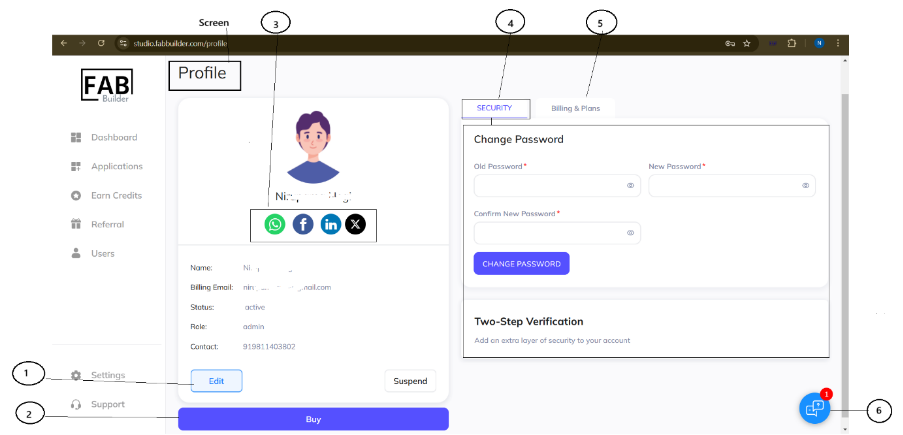
The Profile screen offers the multiple features to allow the user to manage their account settings and access the additional services. All these options are clearly labelled on the screen for easy navigation.
These include-
- Edit- This button allows the users to update the name, contact number, profile picture.
- Buy –User can buy or upgrade a subscription plan and upon selection by clicking on this button. User is redirected subscription/ payment screen discussed earlier.
- Third Party App - This feature enables the user to send messages through integrated third-party applications.
- Security - It provides the security by changing the password and enabling two-step verification with additional safety feature.
- Billing & Plan - This feature allows the users to change the billing address and view the detailed history of purchase.
- AI chat box -It offers the real time assistance and query support through an integrated AI chat bot.