1. Technology stack details-Lists the technologies used in front end, backend, application tech.
2. View Application Button-Opens a new screen displaying the complete details of the application.
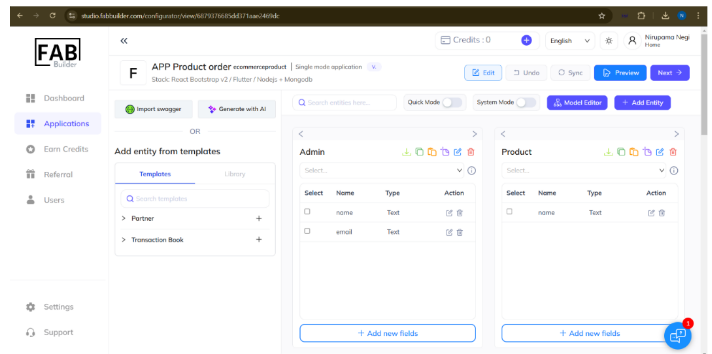
3. Download code- This button allows the user to download the code as a file. It can be used locally or for deployment.
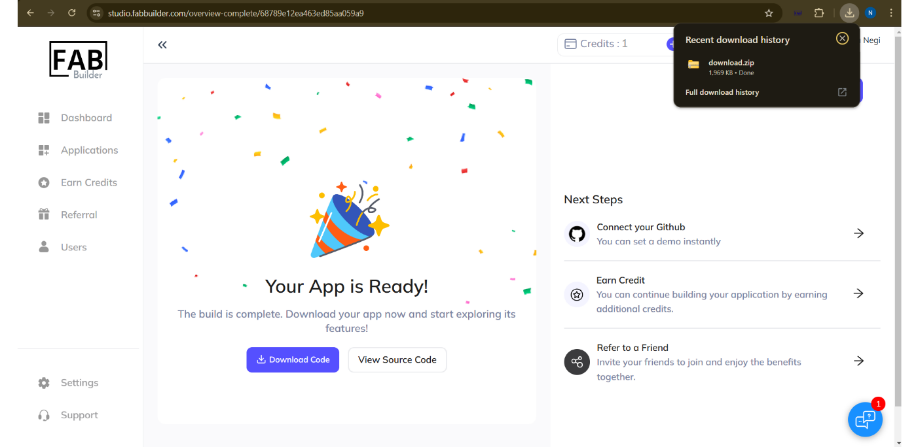
4. Three-dot tab- After clicking on the three-dot tab, it draws the drop-down menu contains the following sections.
- Fork and edit- It enables the user to create a copy of the application and make structural and functional changes.
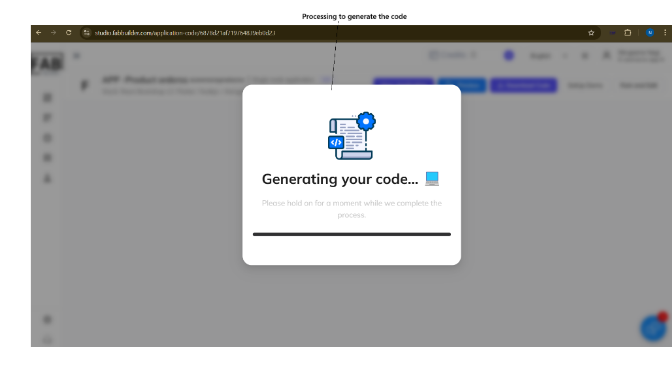
- Code Tab -This tab provides access to view the application source code directly on the screen. On clicking “Code” from the three-dot dropdown menu of an application card, a popup window appears to initiate the code generation process.
- Success -This area indicates the status of application created successfully.
5. Logo, Display Name, application version, updates -This section of the application describes company logo, application name (e.g., APP Product order), application version (e.g., v.1), and updates details of application creation.
On clicking the application name, the user can access the “Configurator Overview” screen.
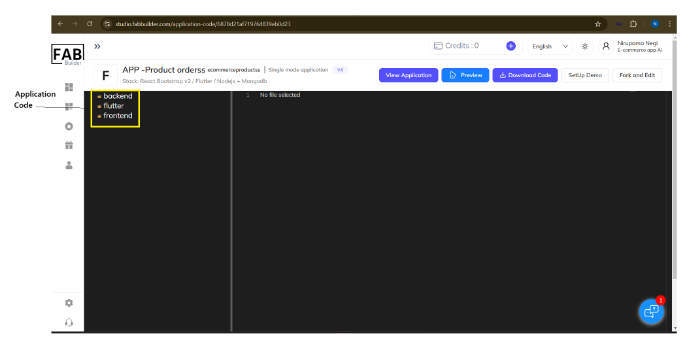
Now the new screen is displayed, which contains code of technology stack. User can click or edit the code directly from the screen in real time.
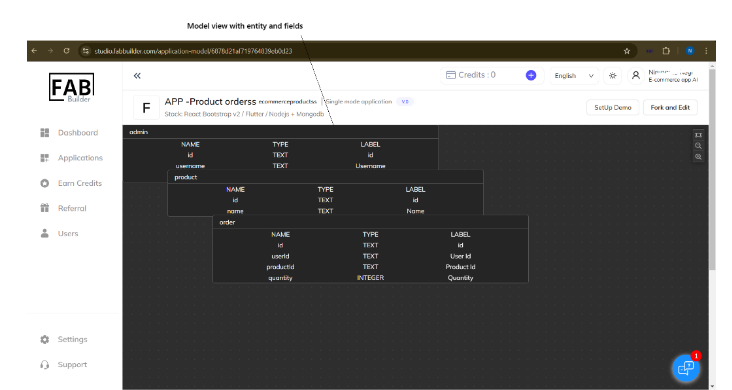
- Model view -This section presents the virtual model of the application, showing the flow and relationship between different entities. To access the Model View, the user can click on the three-dot menu located at the top-right corner of an application card. From the dropdown options, select “Model View.”
This screen allows the user to edit the details of an application directly in real time and provides access for setting up the demo instantly to configure to preview the live demonstration.
- Delete – Allows the user to permanently delete the application if no longer needed.