This screen opens when the user clicks the Edit button on any application card.
The Configurator View screen allows users to configure and manage the selected application as part of the code generation process. It provides the following key functions:
- Edit or Add Details: Modify existing application information or add new entities and fields.
- Save as Template: Save a created entity as a reusable template for future applications.
- Edit Tech Stack: Access and modify the existing technology stack used in the application.
- View Model Flow: Visualize the relationship and flow of all entities within the application through the Model View feature.
This screen can be define as
Horizontal Area 1
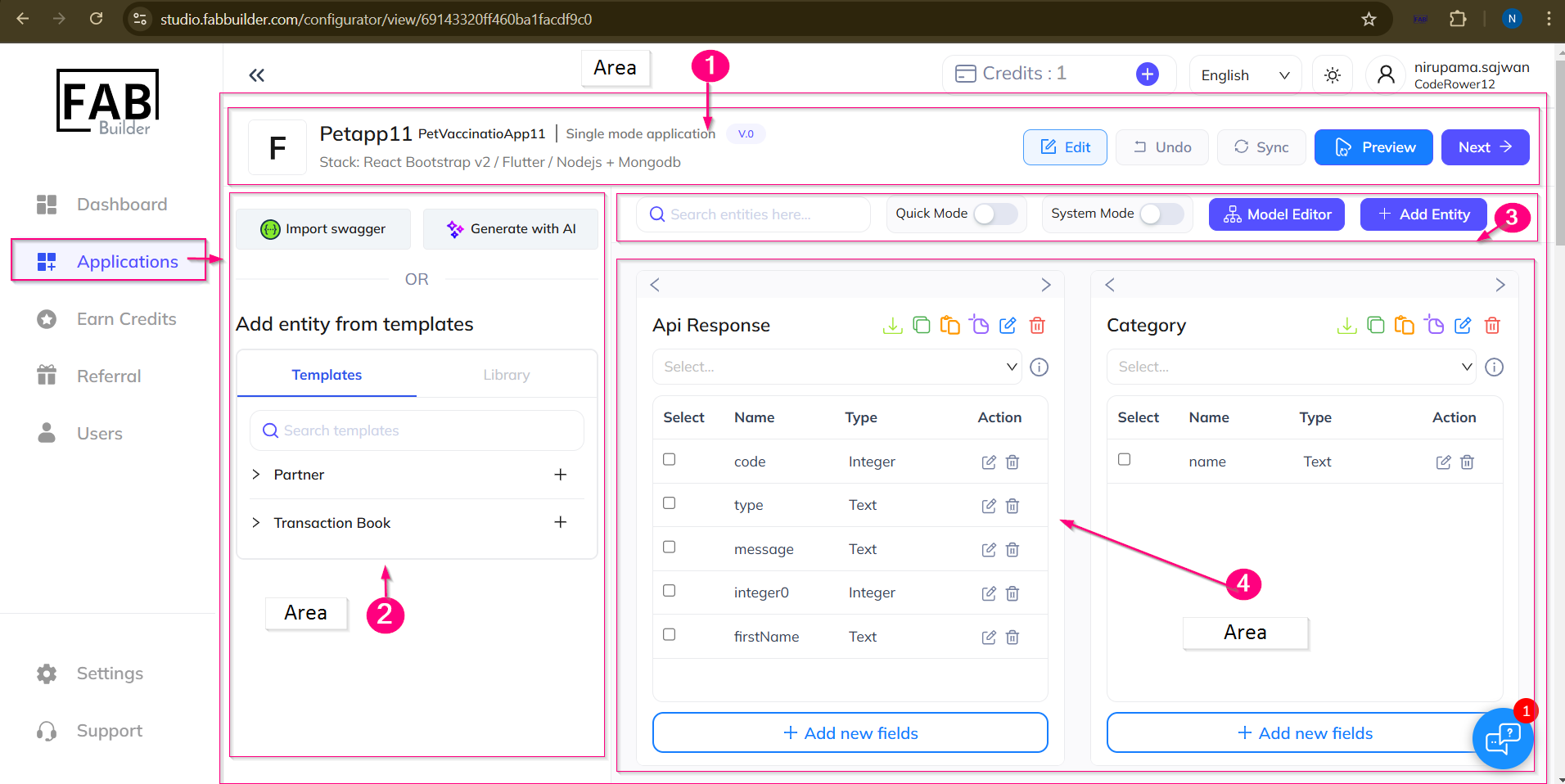
Screen- Configurator View
- Application details – This area contains application name just created and details of tech stacks.
- Edit button –This button allows the user to change any detail of newly created application by edit all details and taken back the user initial step to create the application.
- Undo – This button allows the user to undo the details apply on the configurator screen.
- Sync – User can update and save the details after editing into the system by clicking on sync button.
- Preview – This button gives access the user to preview the application details before generating it.
- Next – This button allows the user to proceed for next step of building the code and download process on configurator screen.
2.Add entity by Template Area- user can create entity byy either ai generator or swagger method or customized it as per requirment
3.Area
- Search tool- This enables user to instantly search entity with its field details by its name which are saved in system.
- Quick mode – This activates the fields button of each entity to make the field addition process quick and fast after enabling the button.
System mode –System auto-adds predefined fields that every entity must have.System automatically adds system-generated fields.These fields are usually fixed in every entity and cannot be changed.
- Model editor- This will display the virtual image of the application with all details and allows use to perform the same action as like configurator screen.
- ·Add entity – Entity can be added manually by clicking on this button .User can refer to add entity section for more details.
4.Entity Card Area- This area displays all the lists of added entity into application. Each entity contains all its details and action tabs in a form of card. This entity card features to edit, copy, delete and save any entity as template. User can add the fields into the entity card by clicking on add field button below on this area. Donwnload icon allows the user to create the entity by importing file/ URL and save icon save any entity as template.