Access the configurator Overview Screen
To open the Configurator Overview screen, the user must click any of the following options available on the application card within the Configurator screen:
- View tab
- Application Name
- Application Logo
Key Features of the Configurator Overview
The Configurator Overview appears in the final step of the configuration process, while summarizing all configurations before the code generation (Build) step under the Application section.
This screen provides the following mention outline:
- Detailed Summary of the Application-Displays a complete overview of the application that is about to be configured.
- Quick Insights-Shows key information such as:
- Number of applications created
- API endpoints
- File count
- Hosting type
- Estimated cost
- Final Actions Before Build-Allows the user to:
- Preview the application
- Edit configurations
- View the generated code
- Proceed with building and downloading the final source code
- Extension Access-Provides access to add extensions directly from this screen.
- GitHub Integration-Allows users to push the generated code to GitHub after the build process.
- Entity Management-Enables users to add new entities to the application if required.
Screen Components
Configurator overview screen can be define as mentioned below.
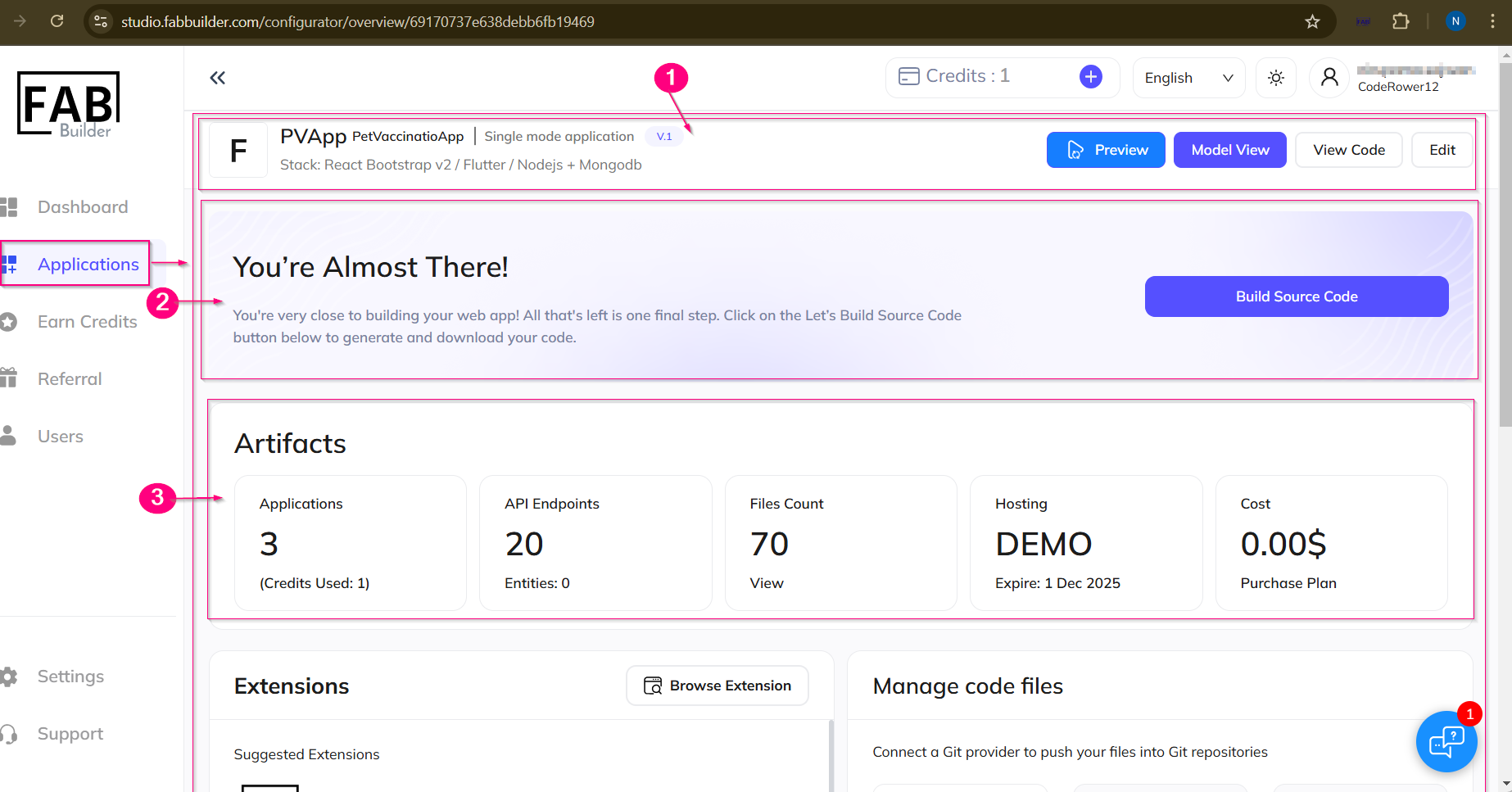
Screen 1-Configurator Overview
1. Header Area –This top section of screen displays the application name, version to displays the technology Stack (e.g., React Bootstrap, Node.js, MongoDB). This area includes buttons to perform the following action-
- Preview: To view the UI preview of the application.
- Model View: To view the application’s data model.
- View Code: To review the generated code.
- Edit: To modify the application configuration.
2. Build Source code-This is the area source code generation which allows user to initiates the code generation process by clicking on Build Source Code Button.
3. Artifacts Section-This section Displays key statistics related to the application:
· Applications Created count – This section shows the number of applications and credits used.
· API Endpoints Count – It displays the total number of API endpoints and entities.
· Files Count – This section provides the details of total files generated.
· Hosting – This area describes the hosting type and expiration date.
· Cost- It shows the price of the current plan.
4. Extensions Section
This section allows the user to browse the extension to enhance the functionality of the application.
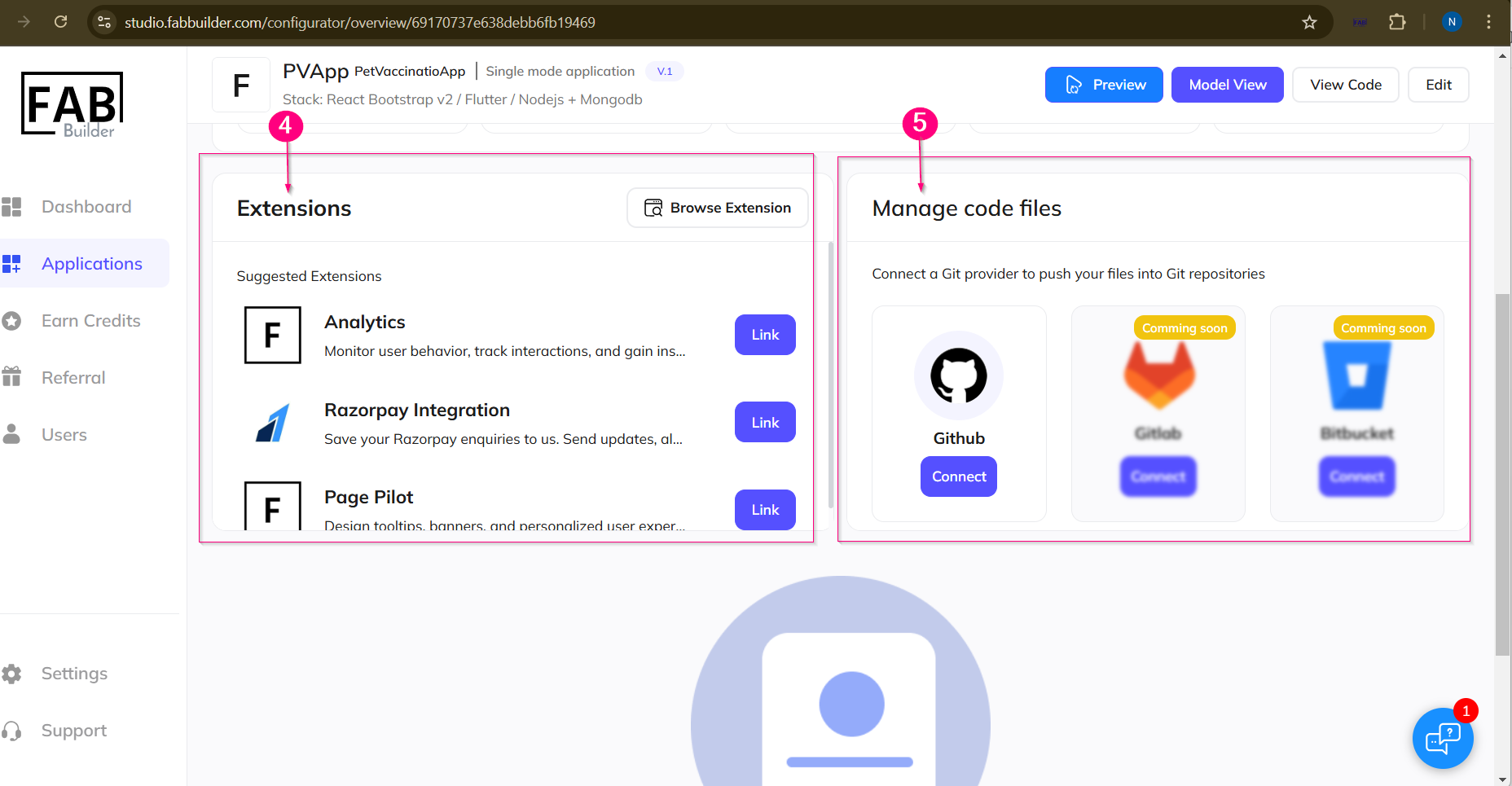
Screen- Extension / Manage the Code Files
5. Manage Code Files
This section allows the user to push code files to their GitHub repositories.
6.Add/View the entity
When the user scrolls further down the Configurator Overview screen, they will find an option to add new entities into the new application.By clicking the Edit button in this area, the user is redirected back to the Configurator View screen, where they can create or modify entities as needed.
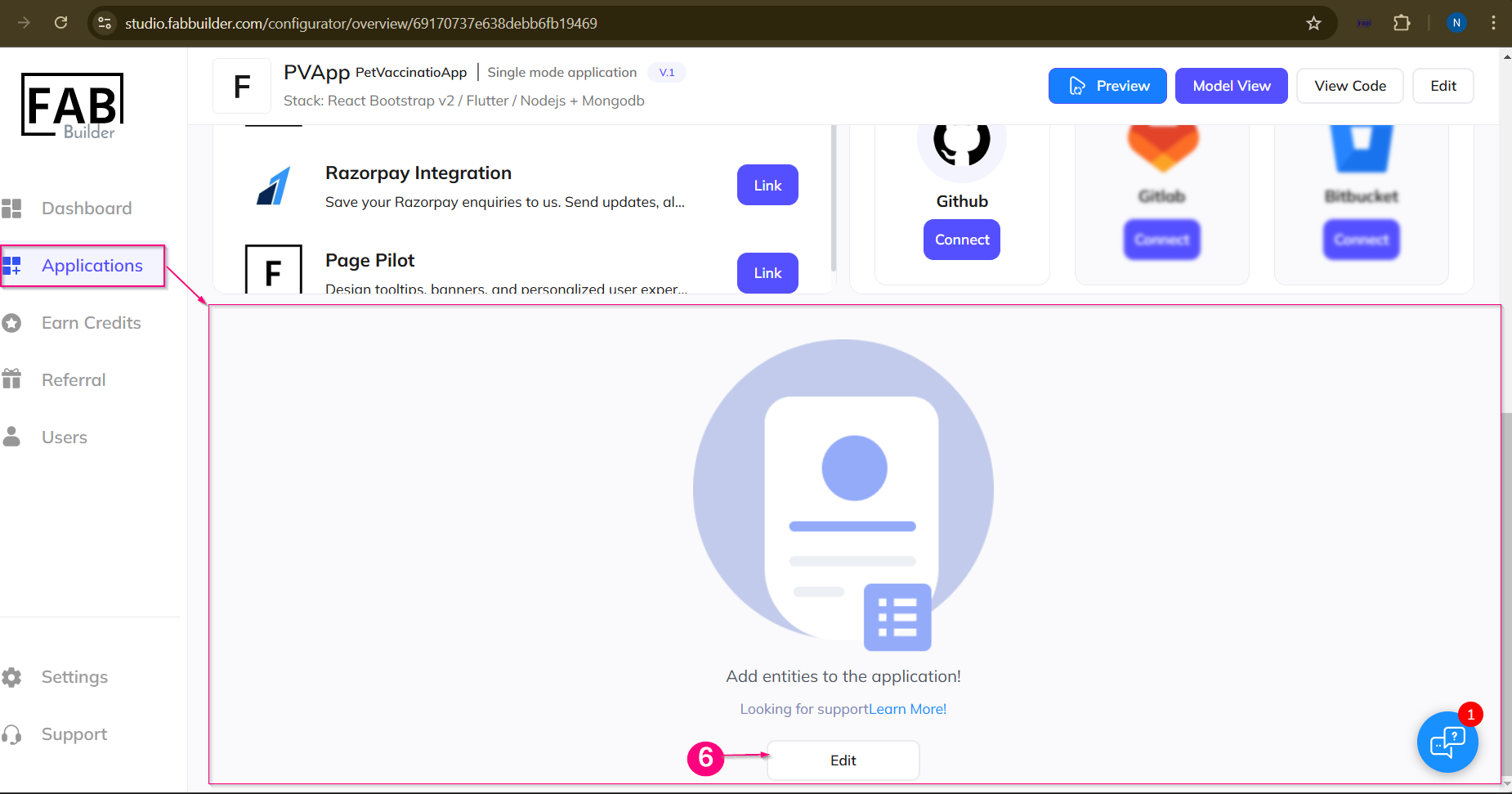
Screen- Add Entity
Note -This above screen area to add entity is visisble for new application as no enities are added into the application.
For an previously added application this area will displays all list of entities with their endpoint,fields added,views details which can be viewed in the screen mentioned below.
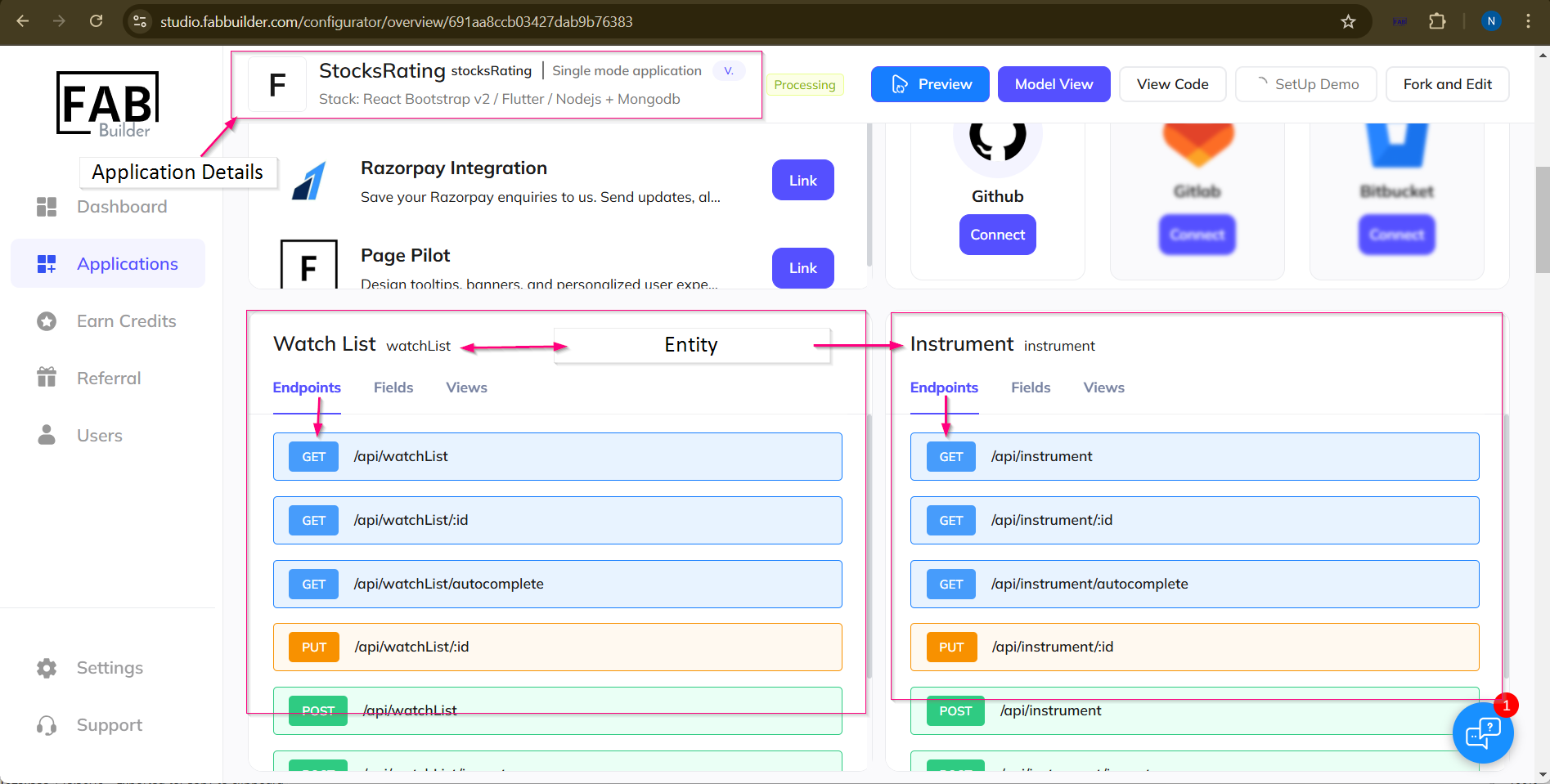
Screen- Configurator overview/Added Entity Details