You are visually configuring (setting up the structure and rules for) an Entity by adding field details which serves as the fundamental data object for your application.this screen provide the following de
Configurator Entity Screen Before Adding Field
This screen is the Entity Configuration page for an entity at Initial Stage when no fields area added shown below.
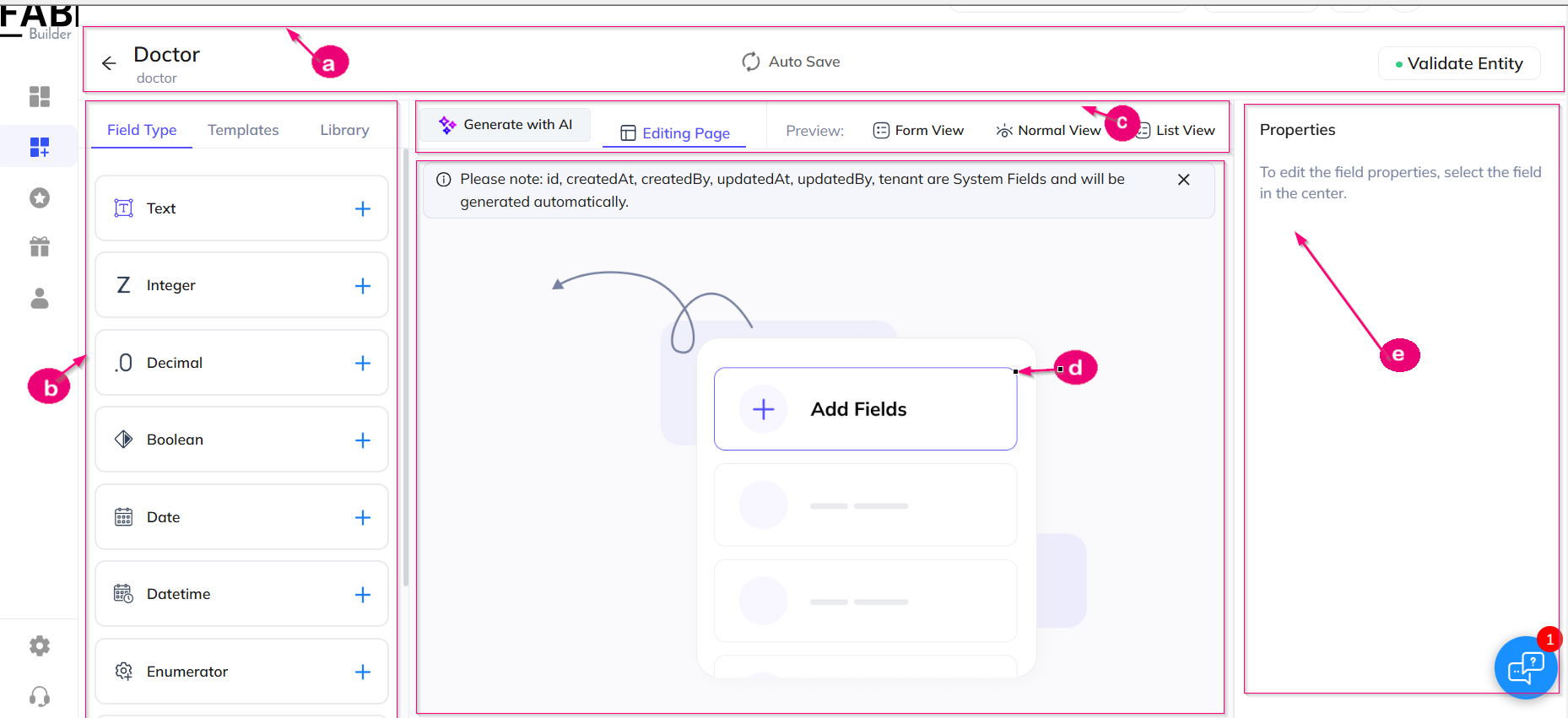
Screen1- Configurator Entity/Initial
Configurator Entity screen after Adding Field
User can add the entity field by clciking on left panel element data type.
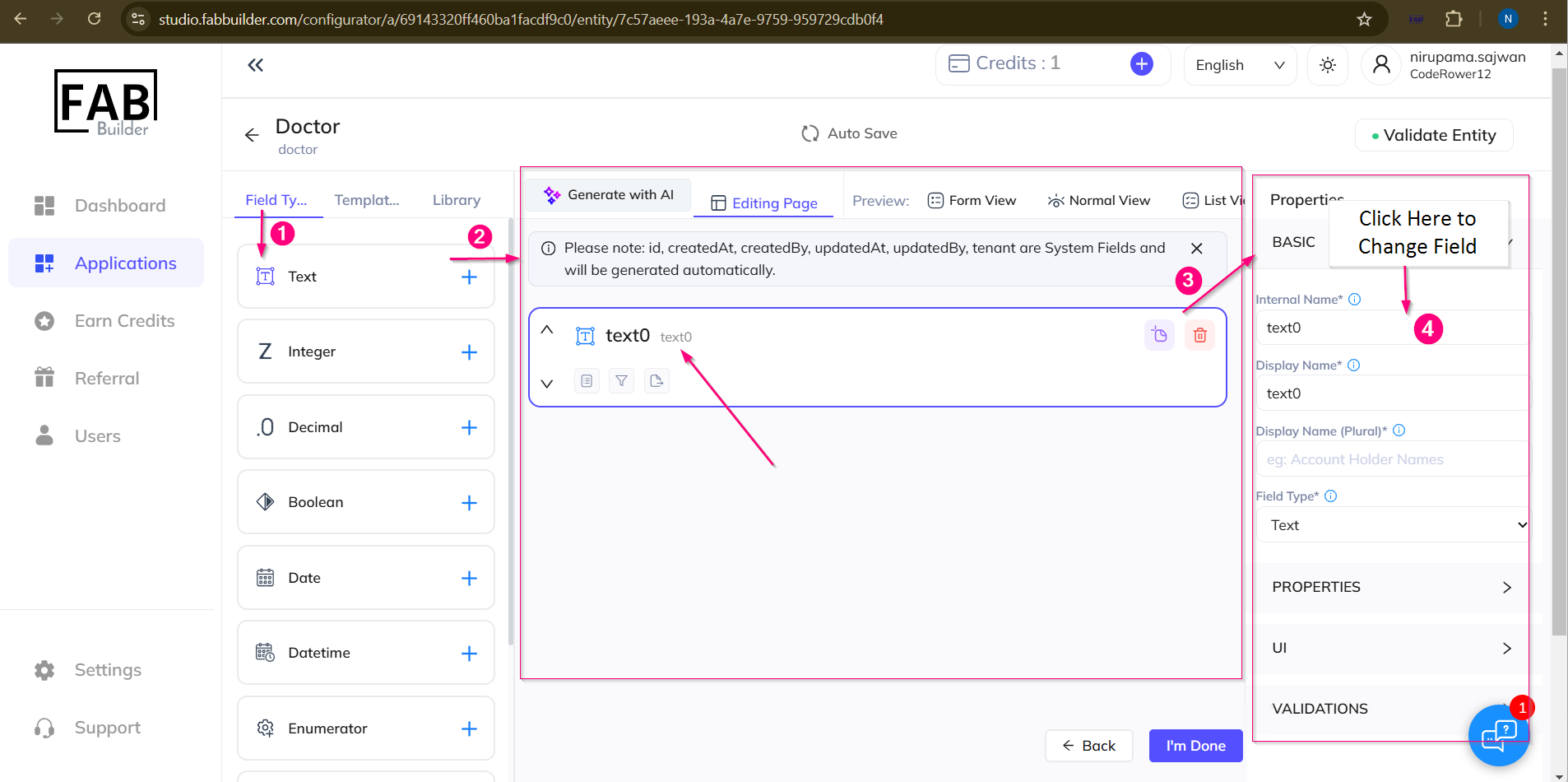
Screen2- Configurator Entity /Add field/Edit the Field Name
Here is a breakdown of the labeled sections:
a. Header & Entity Controls
This top bar manages the high-level status of the entity you are currently building.
- Entity Name: Displays the entity you are editing (currently its showing "Doctor" as Entity name on screen)
- Status: Shows the "Auto Save" status.
- Action: Contains the Validate Entity button to check for errors in your configuration.
b. Field Type Palette (Left Sidebar)
This is your toolbox. It contains the different data types you can add to your entity.
- Tabs: You can switch between Field Types, Templates, and Library.
- Items: Includes standard data formats like Text, Integer, Decimal, Boolean, Date, etc.
- Usage: You likely click the + sign to add the item into center canvas to add data fields (currently text field is selected and added).
c. View & Mode Toolbar
This section controls how you view and interact with the workspace.
- Modes: Switch between "Generate with AI" and the current "Editing Page."
- Views: Toggle between different visual representations of your data, such as Form View, Normal View, and List View.
d. Main Canvas / Workspace
This is the active working area where you build the structure of your entity.
- Current State: It is currently apart from hidden system fields mentioned in the warning note(screen1)After adding the entity field named as "text"is displayed(screen2).
- Action: The large + Add Fields button is the primary call to action to start building the data structure(screen1).
- System Note: The banner warns that fields like id, createdAt, and tenant are created automatically by the system.
e. Properties Panel (Right Sidebar)
This is the inspector panel used for configuration.
- Context Sensitive: Currently, it is empty because no field is selected in the center canvas(screen1).when add field (screen2)
- Usage: Once you add a field (e.g., a "Text" field) and select it in the center canvas (d), this panel will populate with options to edit that specific field's attributes (like name,field ,property,ui,validation etc.).