1. Click on the dashboard tab.
2. Select the one method (AI tool) for creating a new application on the right panel. \
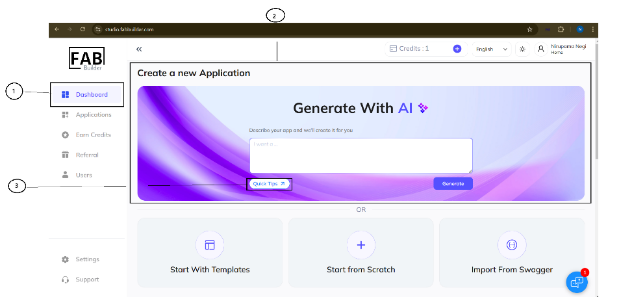
3. Click on quick tips(optional) tab to access the predefined input prompts. A pop-up window will appear displaying various prompt suggestions based on different use cases.
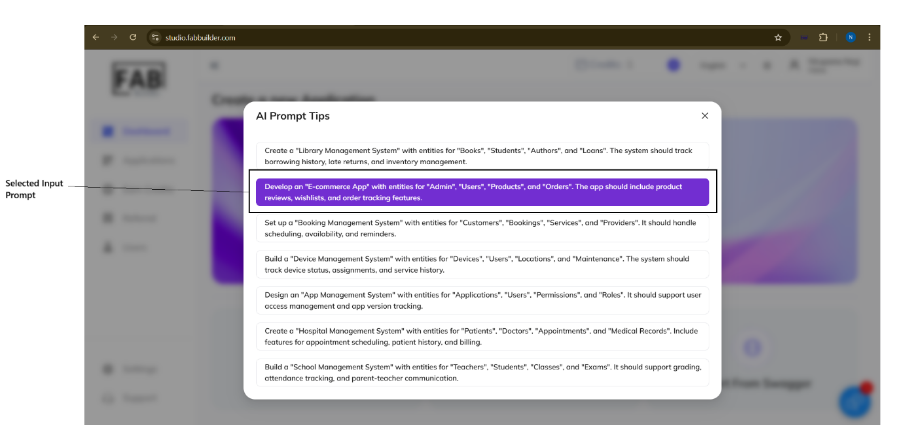
4. User can select one of the listed prompts based on their requirements. Once the prompt is selected, corresponding text will be copied automatically into the AI generator input text box.
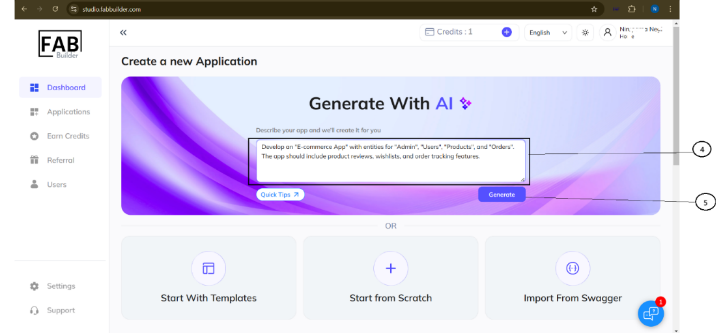
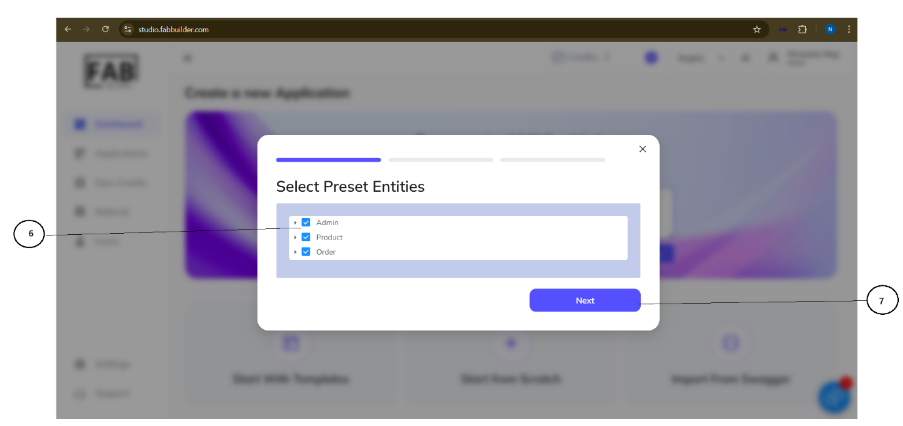
5. Click on generate tab. A pop-up window will appear, showing the list of preset entities.
6. Select or deselect the entity as per user’s requirements.
7. Click on Next button. After clicking, a pop-up window of application name will appear.
8. Fill all details-name, display name, tenant of new application.
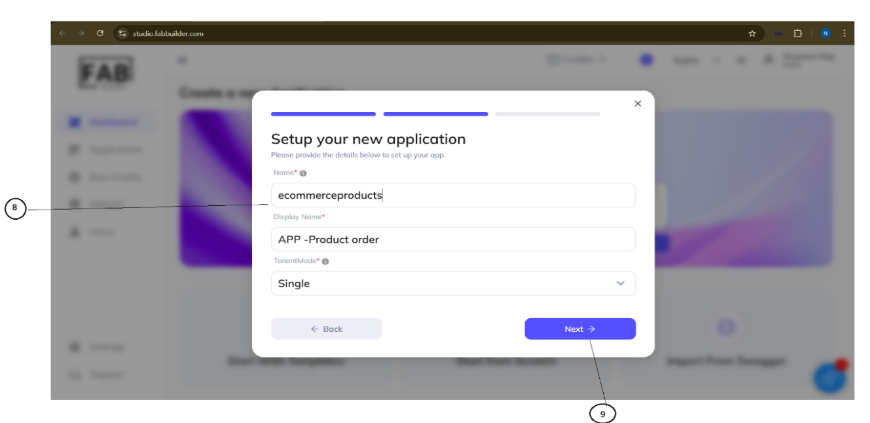
9. Click on the next button.
This click will navigate to Review pop-up window of newly created application.
This window displays-
- The name of the new application
- Technology stacks recommended by AI generator in FAB Studio. This screen also provides an option to customize the technology stacks as per their project requirements(optional). Additionally, a Preview button is available, which allows the user to view a rough draft of the application before finalizing.
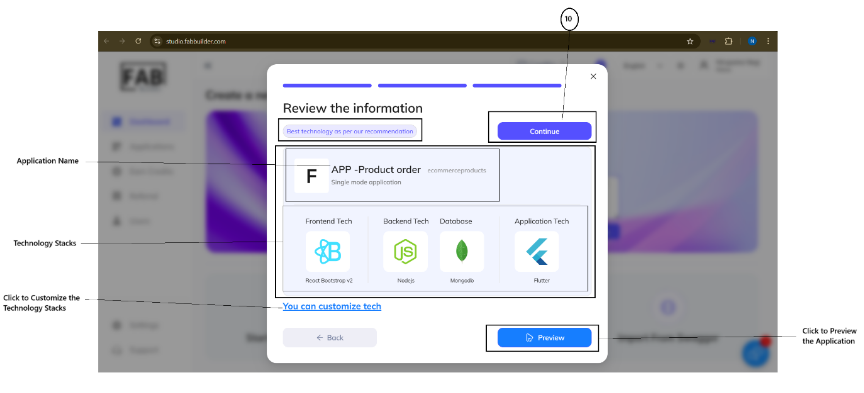
10. Click on the continue button.
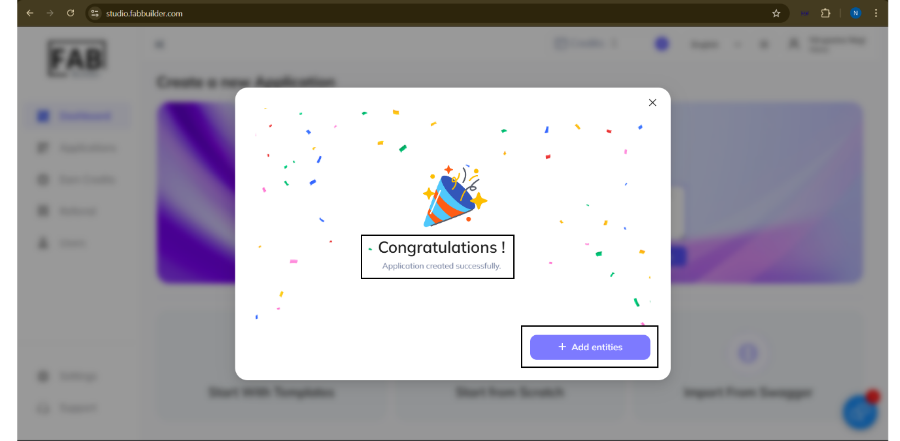
After clicking, a congratulation message will appear on screen, confirming the successful creation of the application.