User can add additional fields to an entity of an application by navigating configurator view screen by following methods
Quick Mode:Fast way to add simple fields using a small side panel.
System Mode:Enables auto-generated system fields inside the entity.
Add Field (Normal Tab): Full detailed field creation form with complete configuration options.
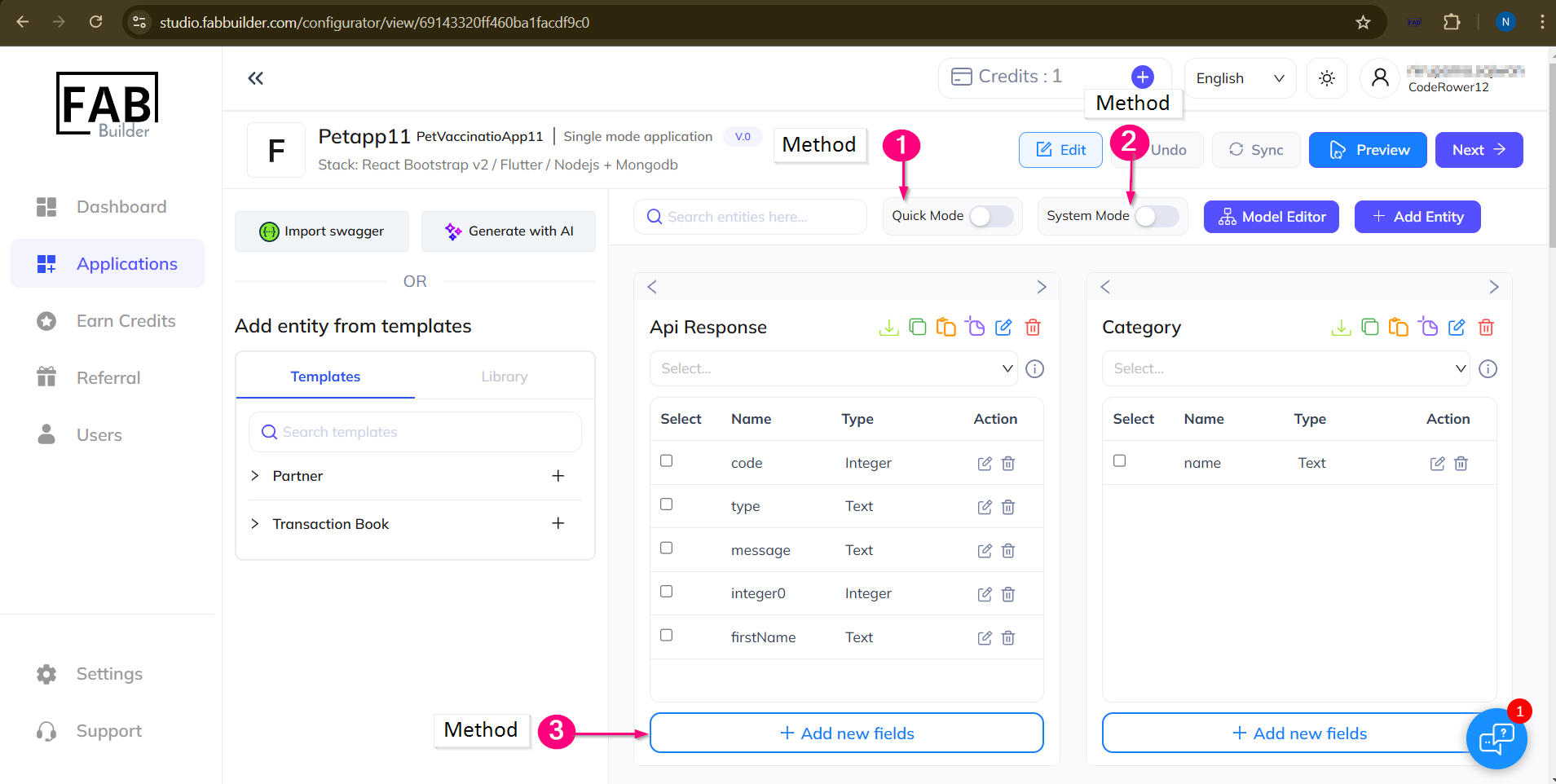
Screen- Add Field Methods
Quick mode
This is a shortcut / fast way to add a field. There is no option of advanced settings and detailed configuration. When user enables Quick Mode, a small side box appears on each entity card
User can quickly type the field name and choose a simple datatype (only basic ones).click "+" button to save the field to that entity card.
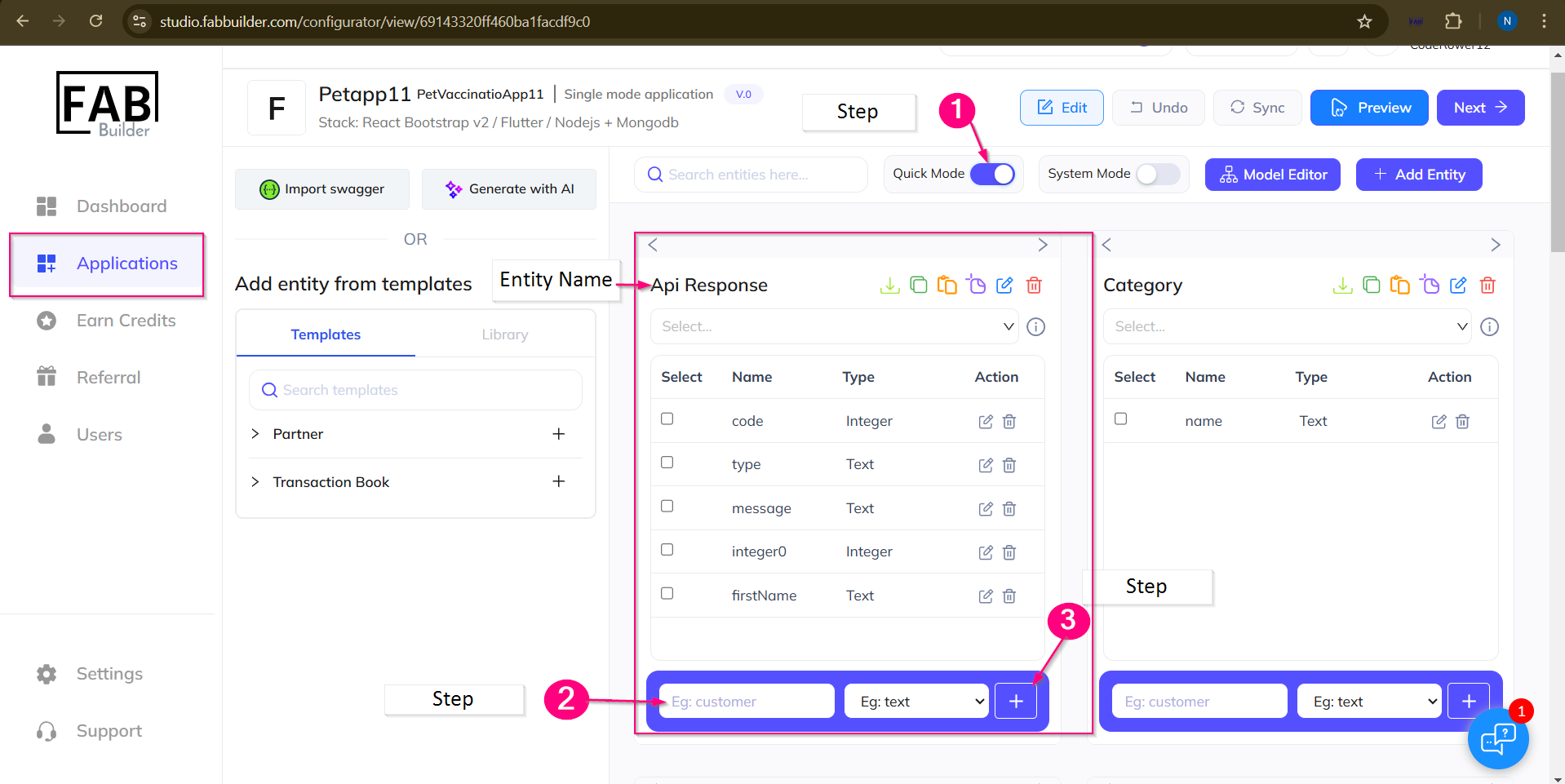
Screen- Quick Mode Method
user can view newly added field for a selected entity area.
System Mode
System automatically adds system-generated fields.These fields are usually fixed in every entity and cannot be changed. When user enables sytem Mode user can view the sytem generated entity with its fields.
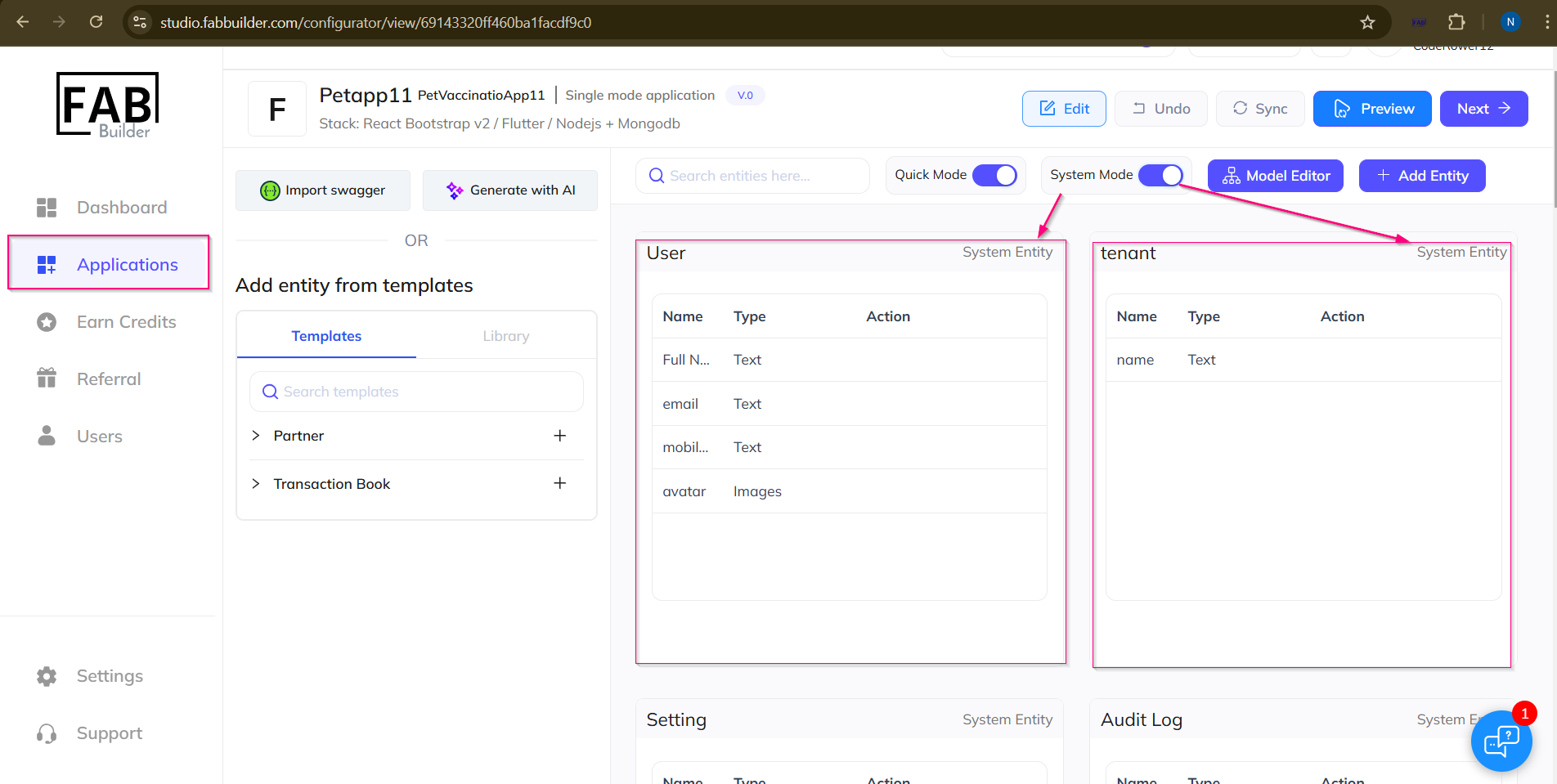
Screen- System Mode to Add Entity/Field
Add Field (Normal Tab)
This is the primary, full-feature field creation panel.
1.When you click Add Entity button,You are redirected to the Configurator screen (Entity).
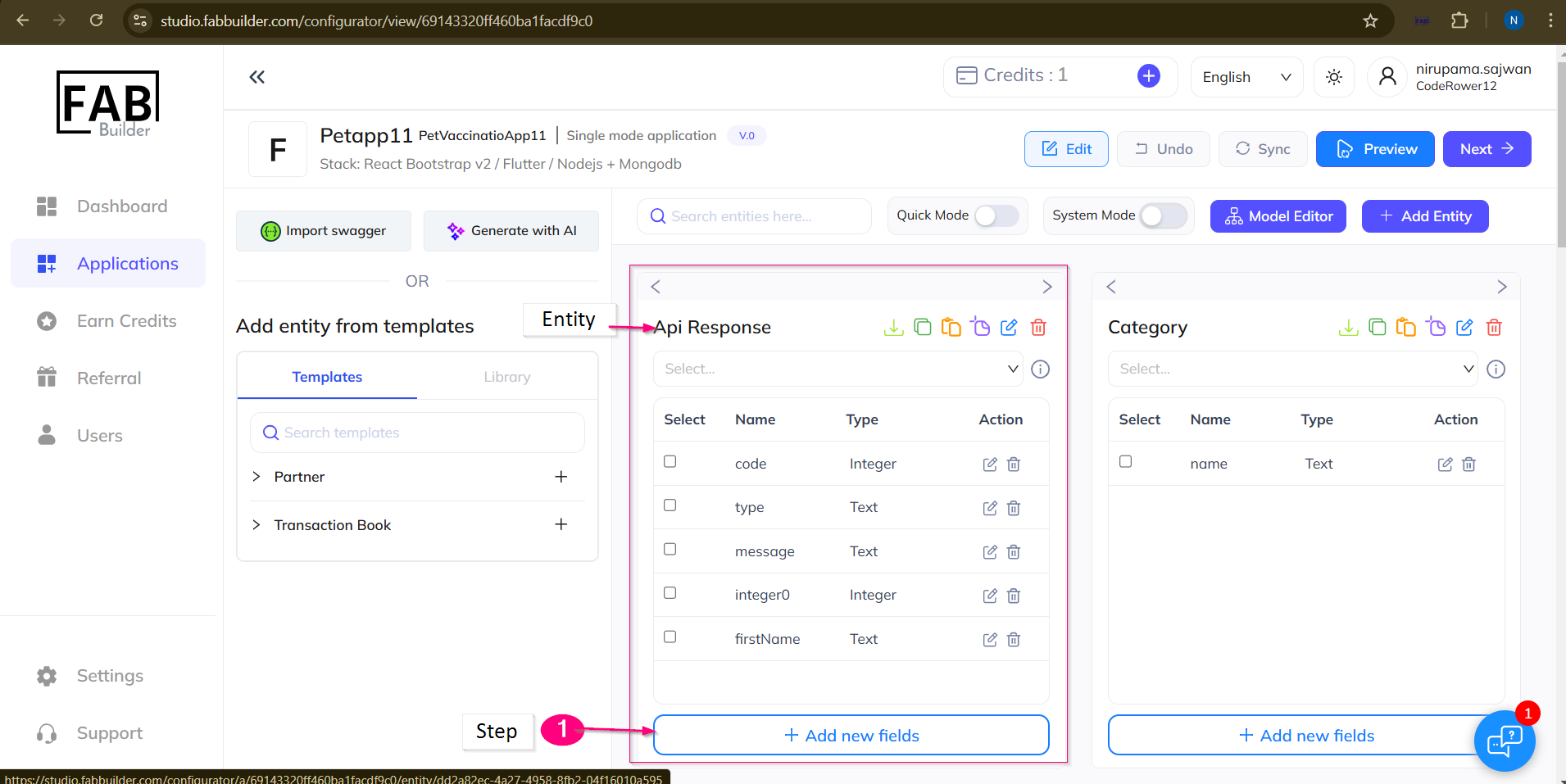
Screen-Add new Field Button
Now user can configure the entity on configurator screen by adding fields following the steps outline belwo.
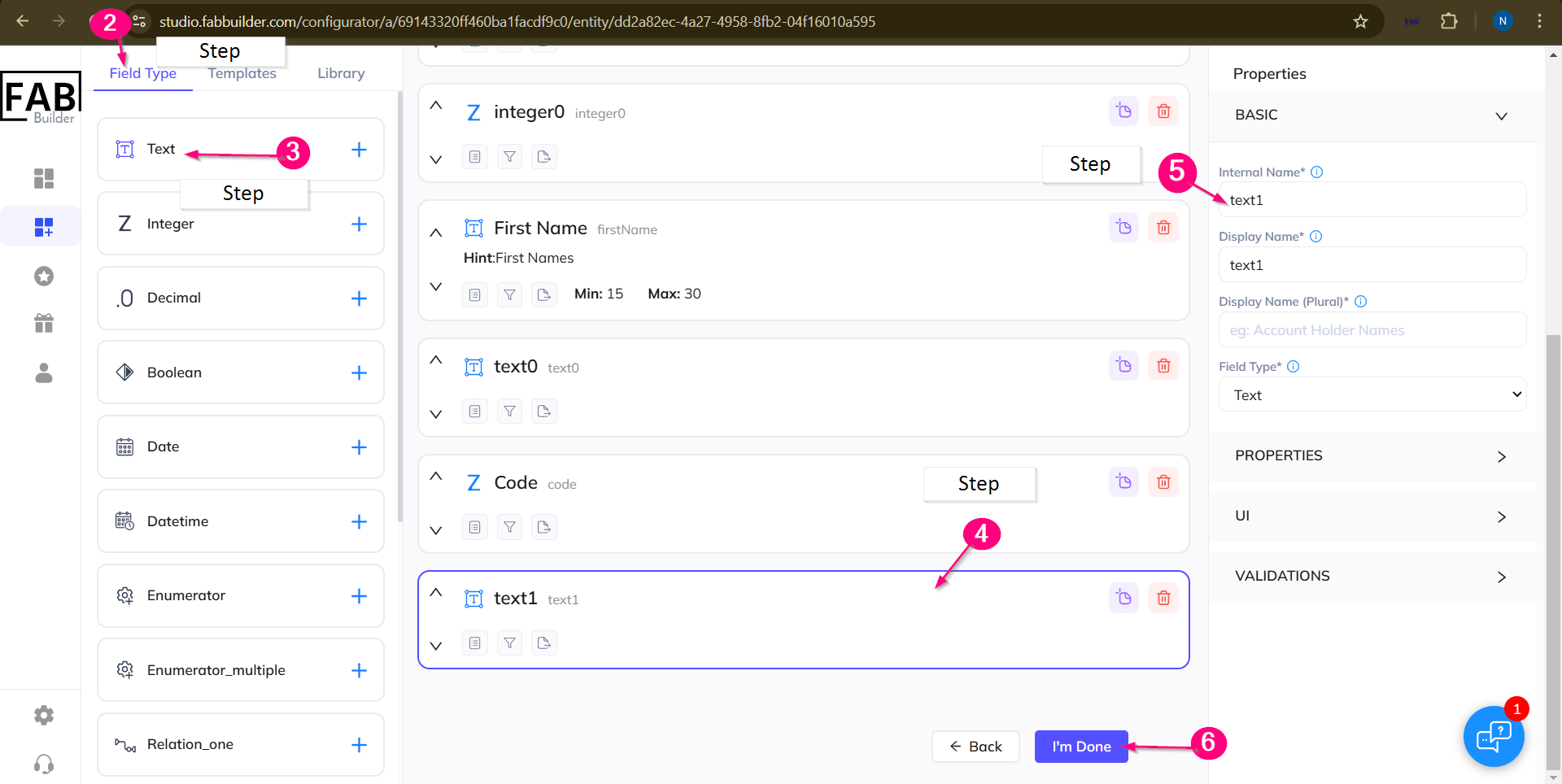
Screen- Steps to Add Field /Configurator(Entity)
2.Select field type tab. This will open drop down menu of the fielddata type .
3.Now select the field data type ( data-text selected).Now user can view added field data type on editing page area(middle).
4.Select the field data type to edit the name details on left right side panel under basic tab.
5.Change the name of field and edit other details if required.
6.Once all detsils added of entity field ,click to i am done button .New field is added of selected entity.