Entities in an application can be created only through the Configurator Screen.Regardless of where the user starts, they must first navigate to the Configurator Screen to define or modify entities.
Access to Add Entity
Users can access the Add Entity option from two places:
1.After creating an application
The system displays an “Add Entity” button.
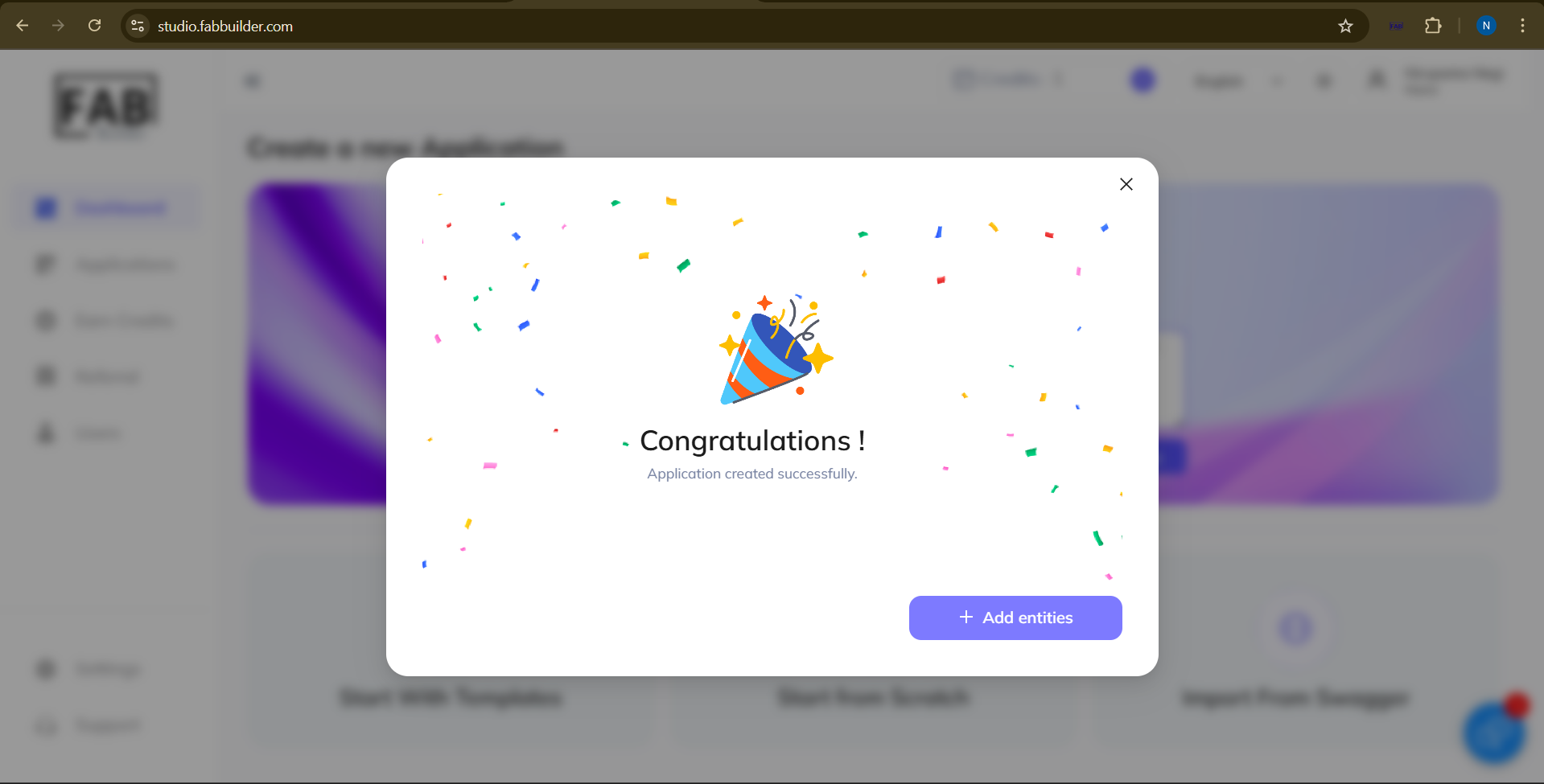
Screen- Add Entity Button
Clicking this button opens the Configurator Screen.
2.Inside the Configurator Screen-The Add Entity button is also available within this screen.This action lets the user manually create a new entity depending on specific customer requirement.
use can also add enetity by selecting Predefined template from template or library section.
This screen also provides an access add entity by AI or Swagger method.
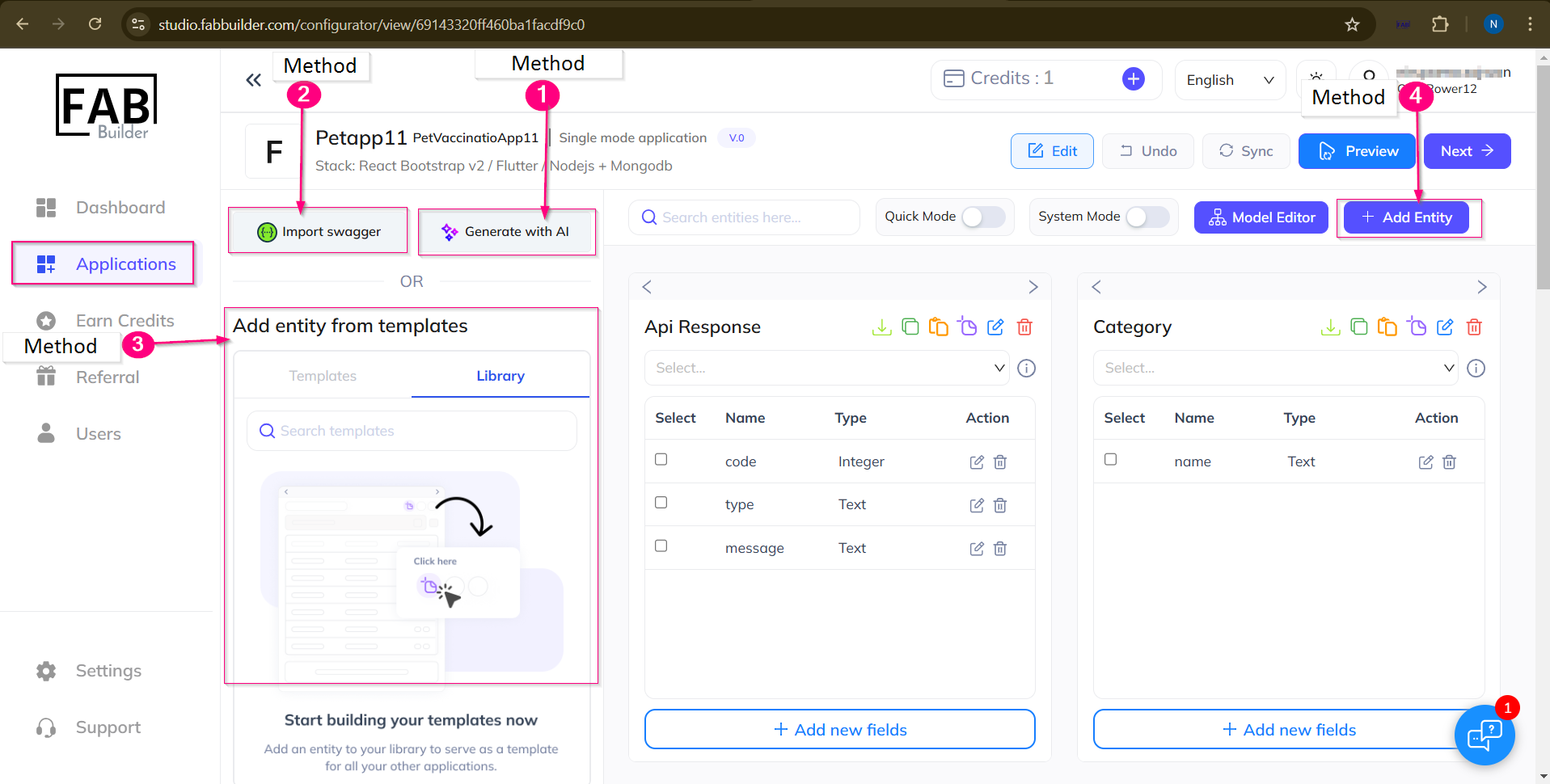
Screen- Methods to Add Entity/Configurator view
Methods to Add entity
This screen provides four methods for adding an entity: Template, AI, Swagger, and Manual creation.
1. Add Entity by AI
This feature allows users to quickly generate entities using the AI Assistant.

Screen- Add entity/Generate with AI/Configurator View
Follow the stepTo add the entity by AI
1.Click the button Generate with AI on configurator view screen
2.Users can either enter a prompt manually or in quick Tips format provided on the ai prompts list.
3.Click on ask Button.
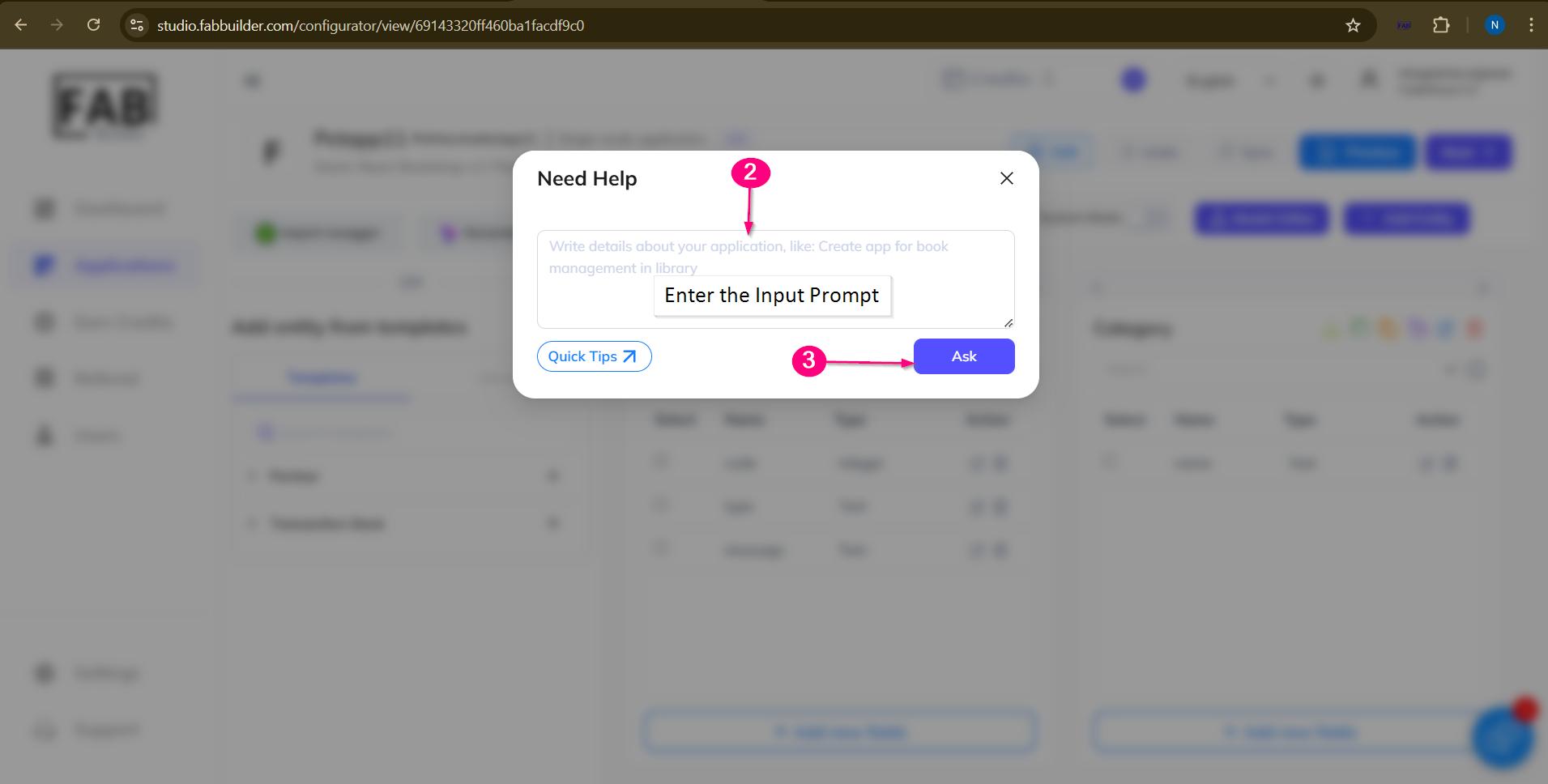
Screen- Add Entity/ Input AI Prompt
The AI interprets the input and automatically creates the corresponding entity with relevant fields and data types.
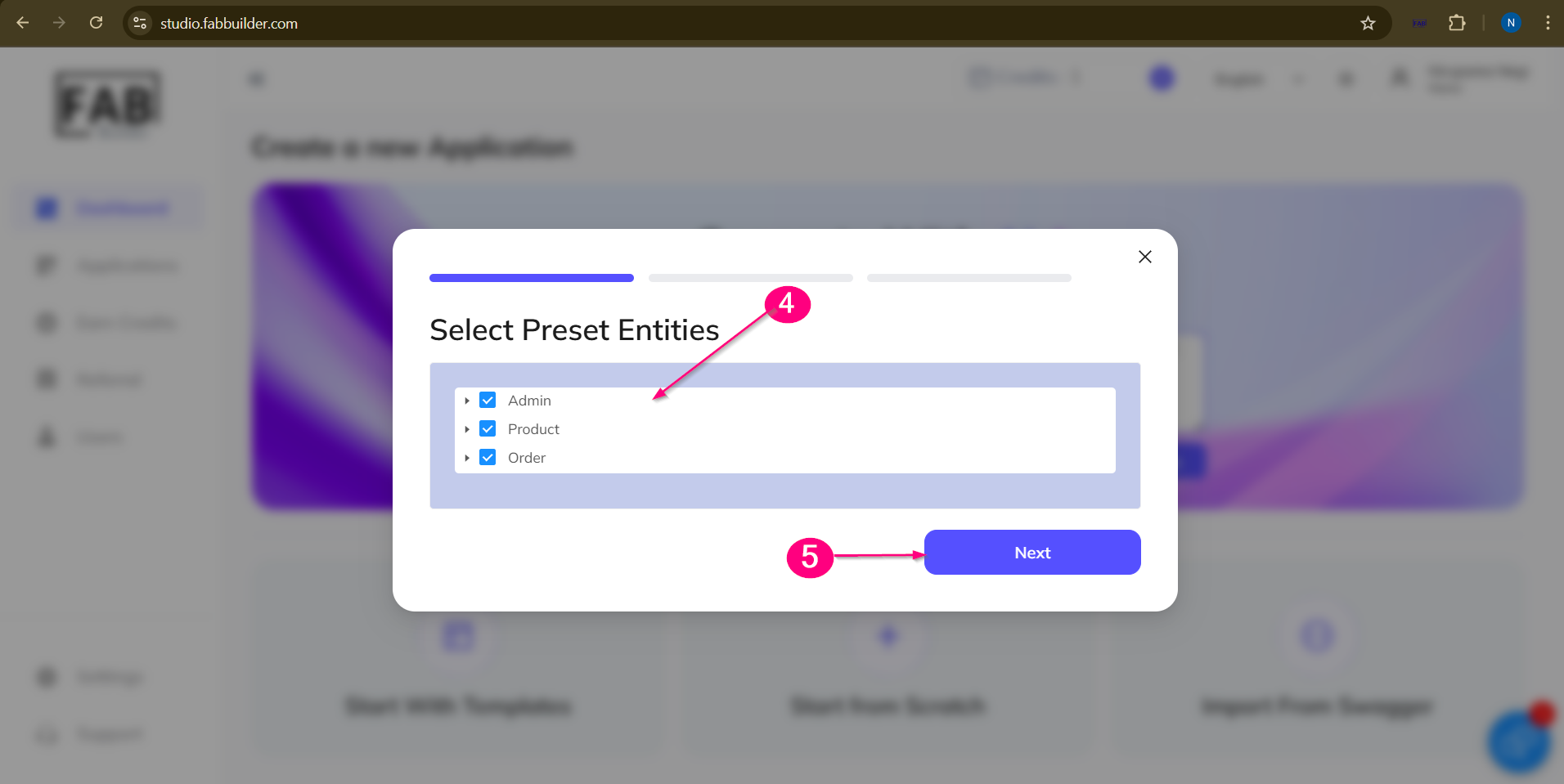
SCREEN- Add entity/AI
Further steps will display exaclty same screens as described in Generate with AI ascreen.Refer the same section for coplete details.
2. Importing the swagger
This advance feature allows the user to automatically generate the entities by importing the swagger file or URL.Follow the steps to add entity by this method
1.Select the Import Swagger option on configurator screen, a pop-up window will appear ask user to impoert link or url.
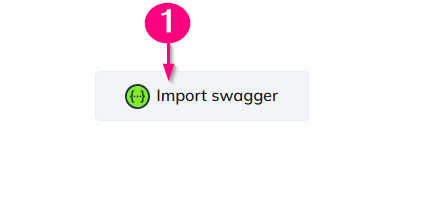
Screen-Add Entity/Import Swagger/Configurator View
2. Enter the swager link or upload the file.
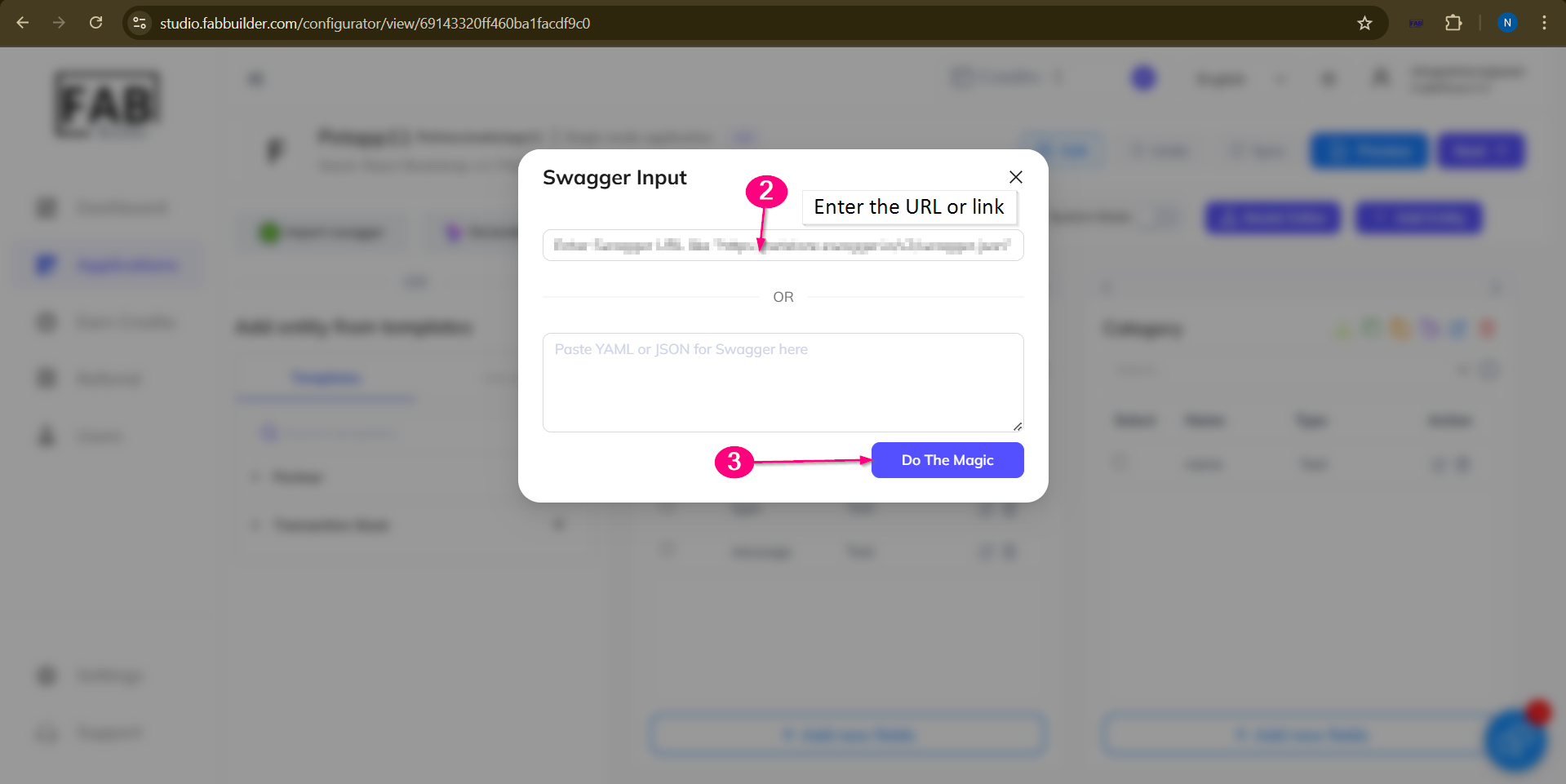
Screen-Add Entity/ Swagger /Configurator View
3. Click on Do the magic. A pop- up window will appear which listed predefined swagger input. 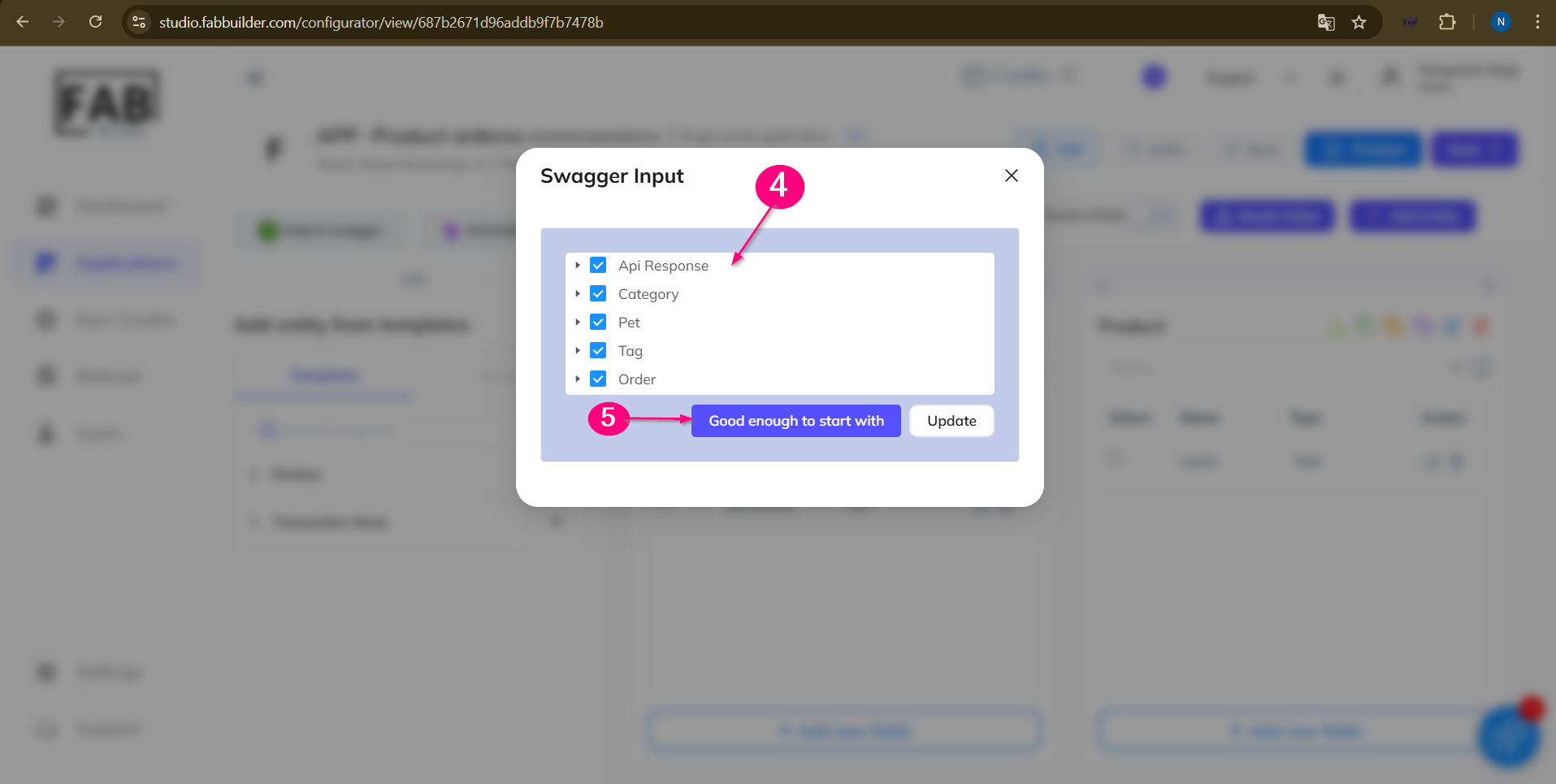
Screen- Add Entity/Swagger/configurator View
4. Click on check box to select/deselect (optional).
5. Click on “Good enough to start with.”
Once the import is successful, a new entity is automatically created based on the definitions of swagger file or URL. This entity is immediately visible on the application configuration screen which can be modified as needed.
3. Using predefined template or Library
To add the entity within the application ,user must select the tab (template or library).User can view the saved template or library from the drop down menu on selecting the tab.
by clicking the "+" button next to template/library it drops the menu listed apply button to add template.on selecting
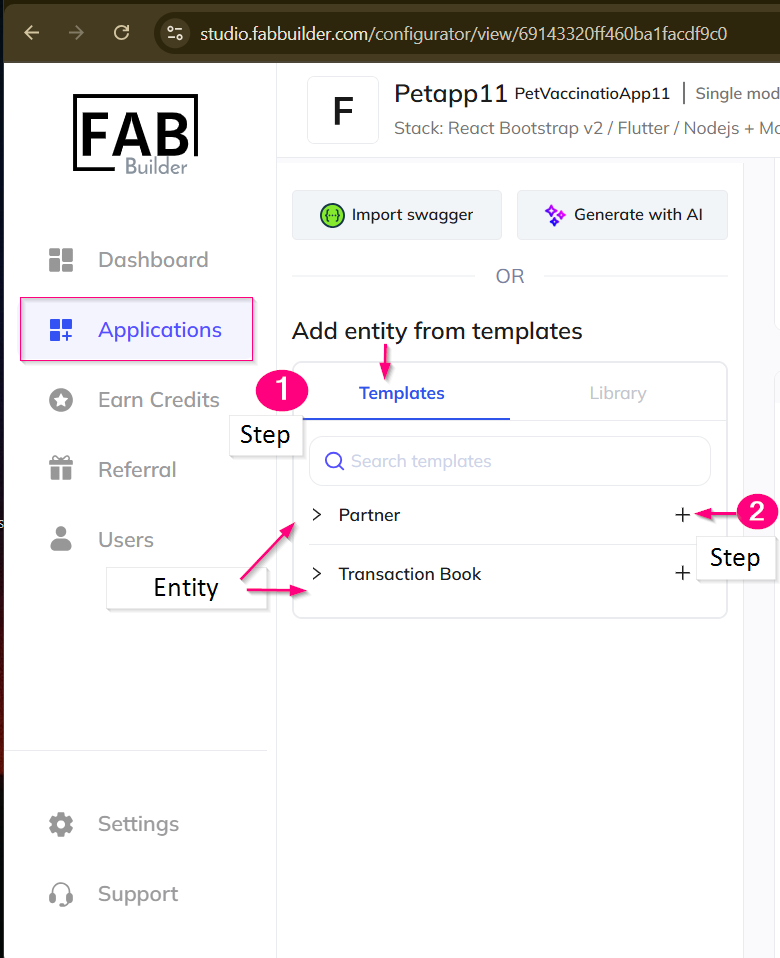
Screen-Add Entity by Template/Library Method
1.Selecthe method to add entity(selected Template)
2.Click on "+" sign which drop down the apply and delete button.
3.Click on apply button to add the saved template into the application.
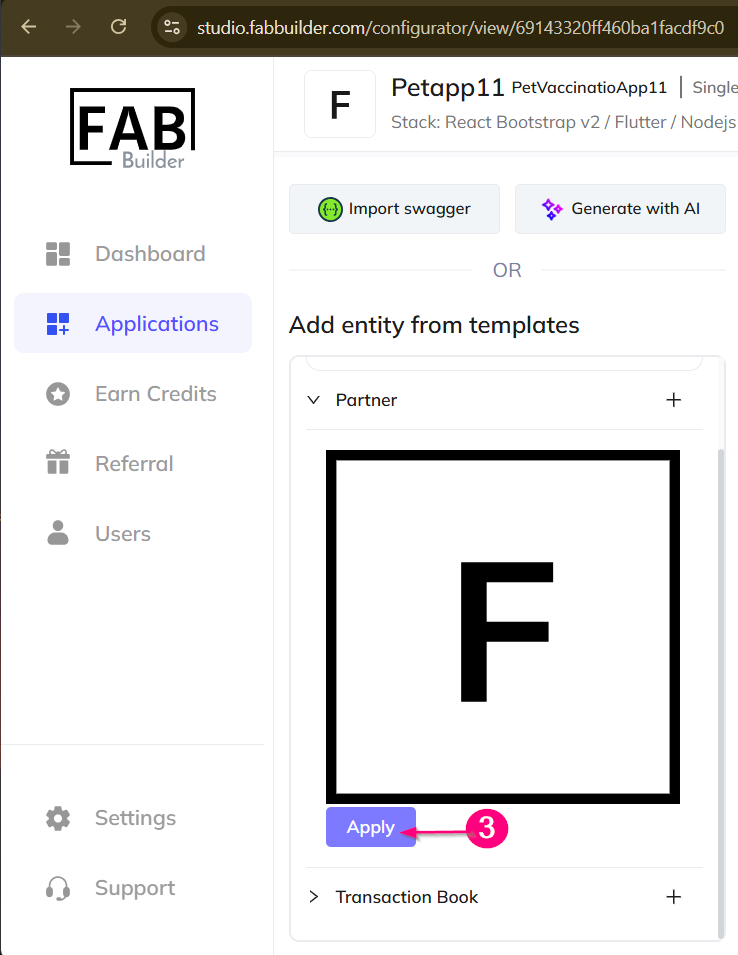
Screen- Add entity by Template
user need to follow the same step to add enity save in library with in the application
4. Manually added new entity
User can add new entity by clicking the add entity(1) button(first (on top right corner) which taken to the Create Entity field area on the same screen.
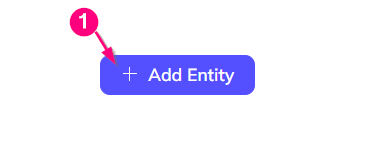
Screen- Add entity /(Mannually create Entity Method)/Configurator View
User must enter the necessary details such as entity name and its fields(2), before clicking on submit button(3).
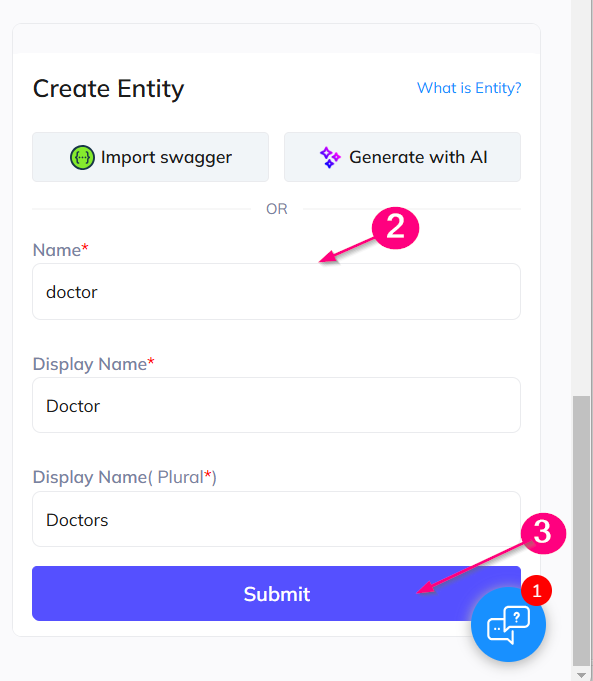
Screen-Create Entity
Now new added entity is listed with in the aplication as shown below.
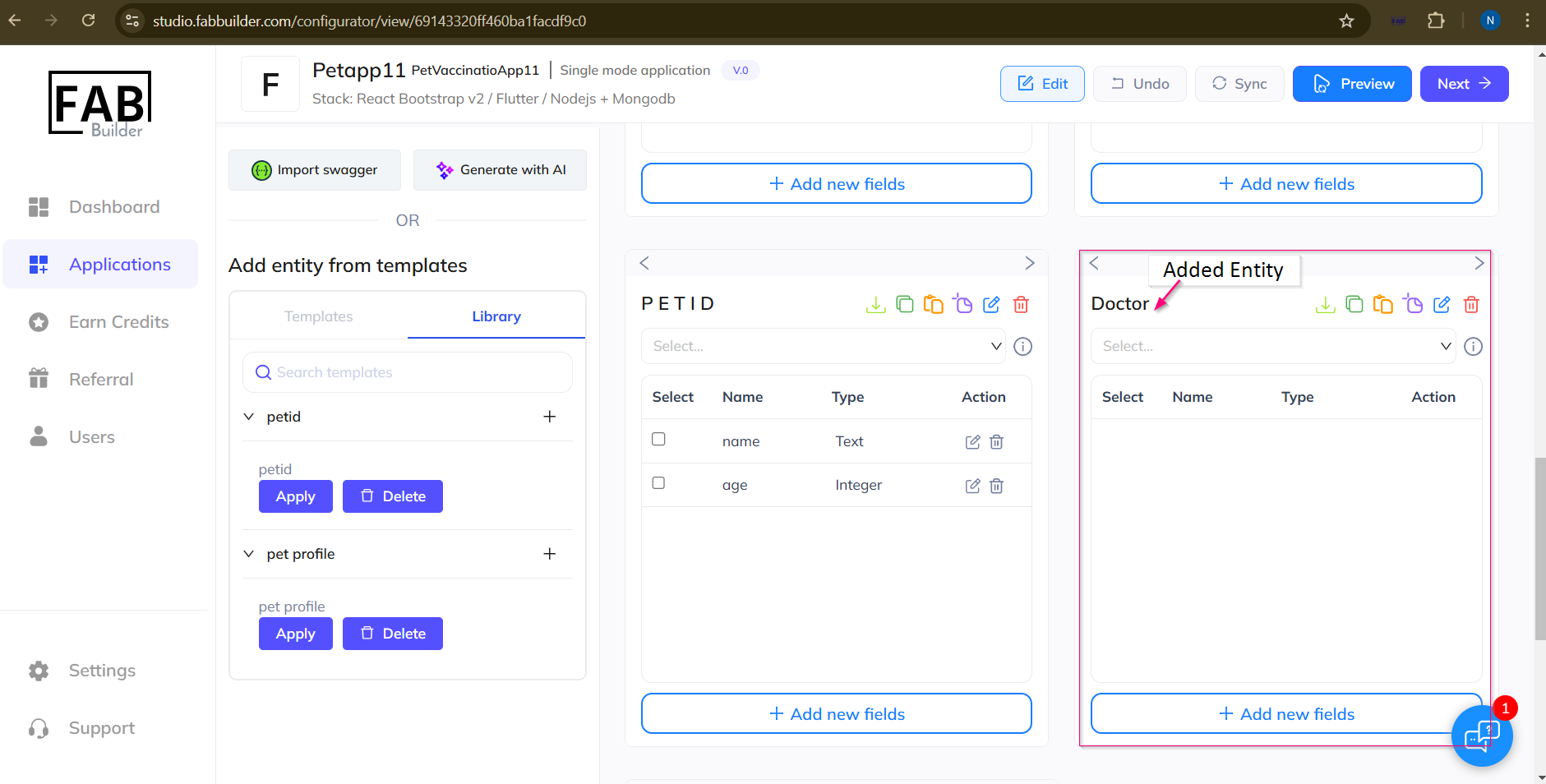
Screen- Added Entity Manually
Save the Entity to Library
once the Entity is added within the application on configurator view area ,user can save it on library by clciking on save in lirary icon with in the same entity widget card as shown below.
1.Click on lirary icon.This click will open a form to add entiy into the library.
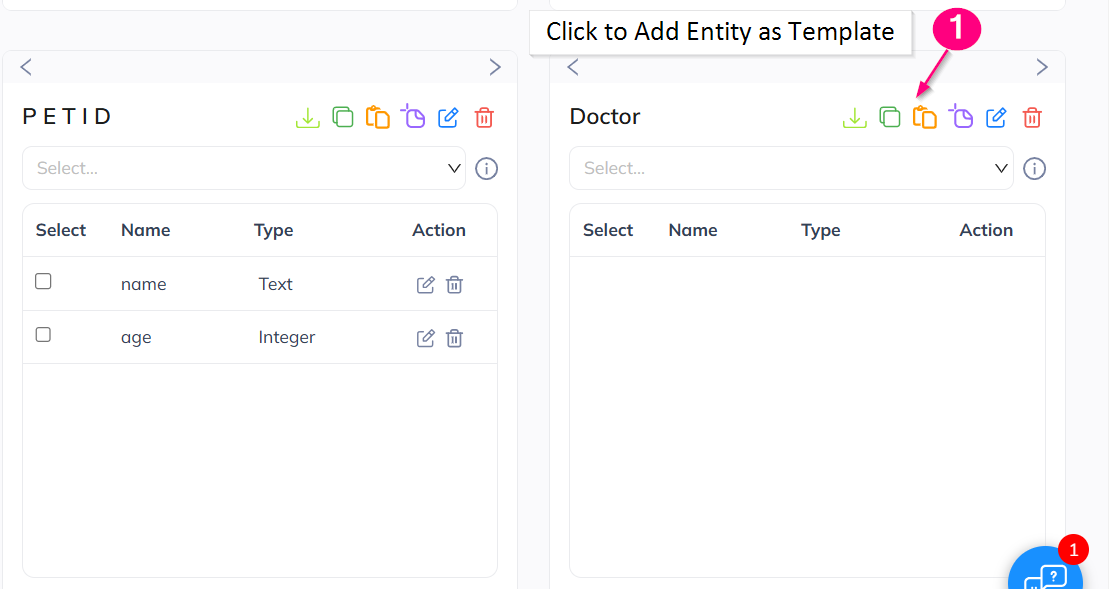
Screen- Add entity into the Library Icon
2.Fill the add entity to library form.
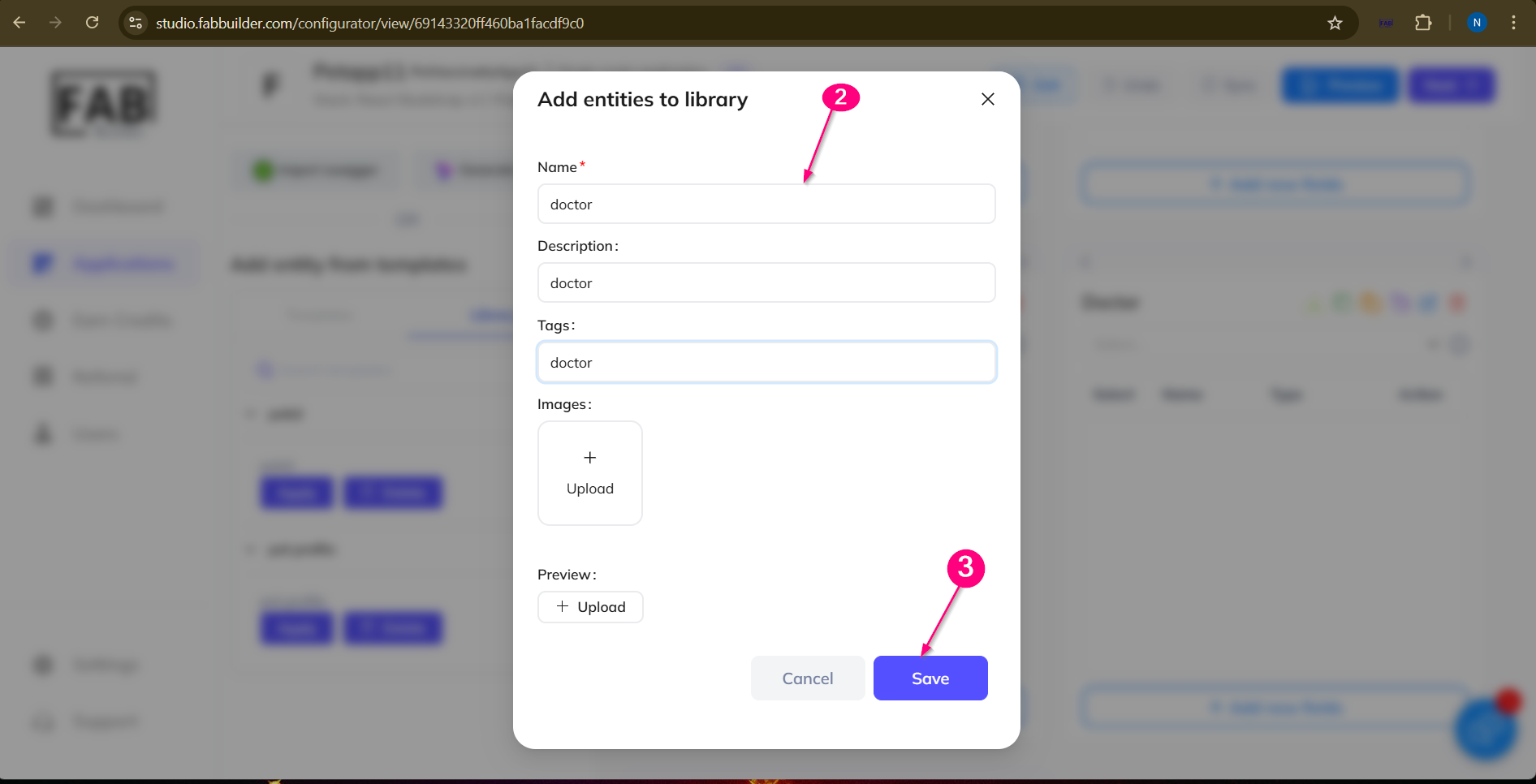
Screen- Save Form
3.Click to save button.Now user can view the added entiy into the library section.
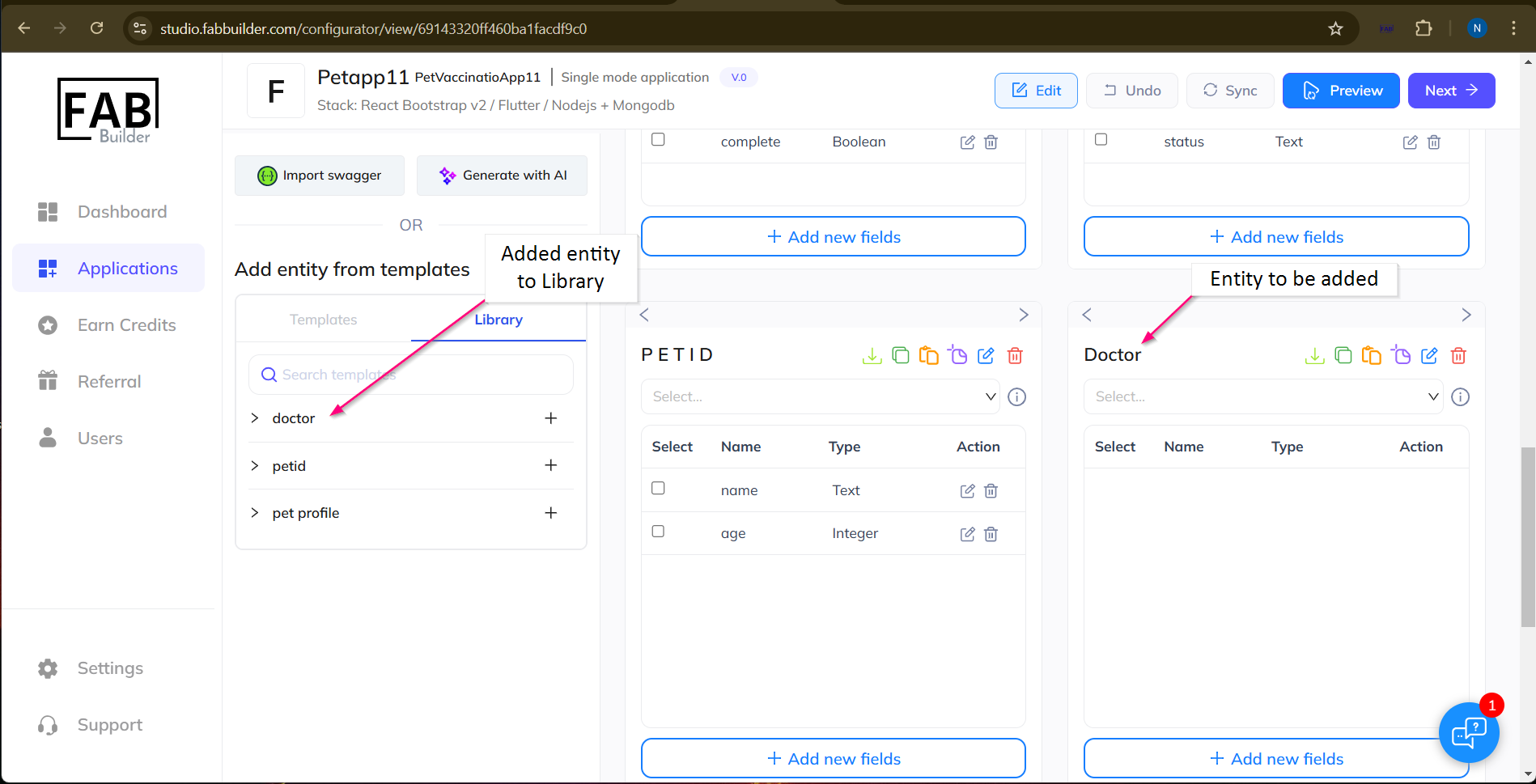
Screen- Entity Added